How to Convert Thunderbird to Outlook?
Easy to use tool for Thunderbird Mailbox conversion into multiple formats. Rating: 4.9 - based on 1255 customer reviews
 A complete help of how to convert Thunderbird Mailbox to Outlook PST, Office365, EML, MSG, Lotus Notes NSF, EMLX, HTML, Gmail Account, and Yahoo account directly.
Download Now
Win 10 & all below version
Step-1) Open the software

Step-2) click on "Add File/Folder" button from the toolbar or from File menu and the below screen appears.

There are 3-type of file selection options and these are describe below-
Selection Mode- 1) Select MBOX File- If you want to export only one MBOX file, then this option is for you to choose and convert MBOX to PST, or other formats. Now click on the Next button.
Selection Mode- 2) Select MBOX Folder- If you want to perform batch MBOX or Thunderbird MBOX migration, then select it and choose the location of folder having MBOX files. Now click on the Next button.
Selection Mode- 3) Auto Load Thunderbird Profile- This option helps if you want to export all list of configured mailboxes in Thunderbird email client. The tool auto detect the location of Thunderbird mailbox path and list you all configured mailboxes in tree like strucuter where you can choose the mailboxes and convert into required format.
Step-3)-
Here we demostrate you with Selection Mode-3 - Auto Load Thunderbird Profile
Choose the option-3 (Auto Load Thunderbird Profile) and click on the Next button.

All of configured thunderbird mailboxes appears on the left panel of the software. Here you an individually expand the mailboxes and check the preview of items.
Conversion Options-
The software for Thunderbird Converter has pre-inbuilt 10+ types of conversion options. See the working steps by clicking on the below tabs-
-
Working Steps of Thunderbird MBOX to PST, EML, MSG, EMLX, Lotus Notes, and HTML file
Thunderbird MBOX to PST, EML, MSG, EMLX, Lotus Notes, and HTML file

Now click on "Convert MBOX" button from the toolbar or from the File menu or from the "Convert & Import" menu.

Here you can see, the tool offers you multiple conversion option like -
- Single PST (For all mailbox)- This option helps merge all thunderbird email accounts into single PST file.
- Separate PST for each mailbox- This option helps to create individual pst file for each thunderbird mailboxes.
- EML- This option helps to save Thunderbird mailboxes into EML files
- MSG- This option helps to save Thunderbird mailboxes into MSG files
- NSF (Lotus Notes)- This option helps to save Thunderbird mailboxes into Lotus Notes NSF files
- EMLX- This option helps to save Thunderbird mailboxes into EMLX files for MAC OSX.
- HTML- This option helps to save Thunderbird mailboxes into HTML files for web-browser.
Choose your required conversion option as shown on above image
Email Filter - Apply email filter if you want to save messages in between certain dates.
Now select the saving location by clicking on the BROWSE button
After selecting the destination path, Click on CONVERT button.

Once conversion completed, the tool show you confirmation message as below screenshot.

Thunderbird to Outlook Conversion Completed
-
Woorking Steps of Thunderbird to Office365 Migration
Thunderbird to Office365 Migration
Now click on the toolbar "Import into Cloud >> Import to Office365

The following below screen appears-

Fill your Office365 credential in respective fields (See on the above screenshot)
After entering the Office365 login credentials, click on "Convert" button. In a few minutes, the software shows you confirmation message about import process completed successfully.
Thunderbird Mailbox to Office365 Migration Completed
-
Woorking Steps of Import Thunderbird to Gmail
Thunderbird to Gmail Migration
Now click on the toolbar "Import into Cloud >> Import to Gmail
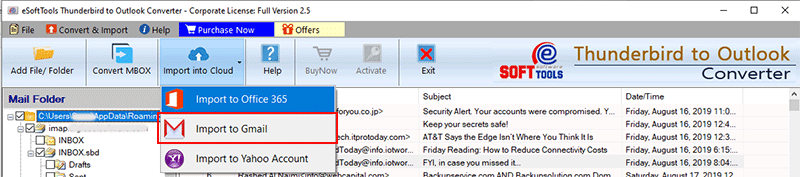
The following below screen appears-
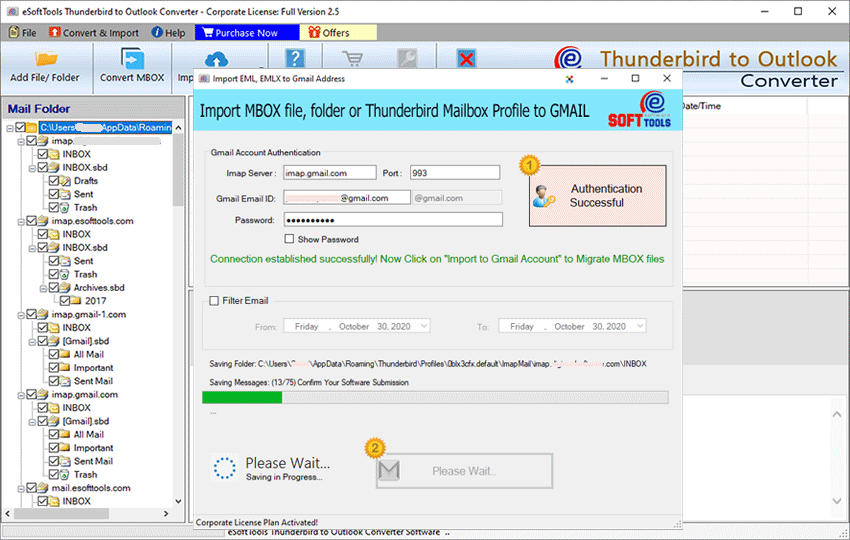
Provide your Gmail account credential (E-mail address & Password) in respective fields (See on the above screenshot)
After entering the Gmail account login credentials, click on "Convert" button. In a few minutes, the software prompts a confirmation message as below-
Thunderbird to Gmail Migration Completed
-
Woorking Steps of Import Thunderbird to Yahoo Account
Thunderbird to YahooMail Migration
Now click on the toolbar "Import into Cloud >> Import to Yahoo

The following below screen appears-

Provide your Gmail account credential (E-mail address & Password) in respective fields (See on the above screenshot)
After entering the Yahoo account login credentials, click on "Convert" button. In a few minutes, the software prompts a confirmation message as below-
Thunderbird to Yahoo Migration Completed