Last updated on August 4th, 2025 at 09:07 am
Nowadays, transferring emails from one email platform to another is a common task that many users have to do for various reasons. In this list, there are some users who want to export emails from Mail.com to Gmail account. If you are also one of them and looking for a better way to do this operation, then read this article. Here we will explain you how to do this task easily. Let’s start reading.
Mail.com is a free web-based email service operated by Germany-based company, United Internet Group. It is known for offering users a choice of over 100 unique domain names (such as @consultant.com, @usa.com, @engineer.com, etc.) to create personalized email addresses. It includes 65GB of email storage, spam filtering, optional two-factor authentication, and other features.
Although it supports alias addresses and mobile/web access, Mail.com does not support custom domain hosting. Its premium version offers additional features like IMAP/POP3 access, ad-free experience, and expanded cloud storage.
Also Read: – How to Backup Mail.com Emails to Computer?
What is Gmail? – Overview
Gmail is another email service available for free, whose creator and maintainer is Google. It is one of the most famous email platforms worldwide.
It offers 15GB of free storage shared with Gmail, Google Drive, Google Photos, and other Google services. Also, has powerful features like smart filtering, spam protection, Google Chat/Meet integration, and deep search.
Like other email accounts, Gmail accounts can be accessed via the web, mobile app, or email client (using IMAP/POP3) and are capable of syncing across different devices.
For businesses, Gmail is also available through Google Workspace, which allows for custom domain email addresses (e.g., you@yourcompany.com), more storage, admin controls, and collaboration tools.
Why Migrate Email from Mail.com to Gmail?
Here are the reasons why someone might want to switch from Mail.com to Gmail account: –
- Backup Mail.com data: – Mail.com accounts can be automatically delete after 6 months of inactivity, leading to permanent data loss. Therefore, transferring Mail.com emails to Gmail ensures long-term backup.
- Business upgrade: – Gmail offers professional tools and collaboration features, as well as, through Google Workspace, allows the use of custom business domains (e.g., you@yourcompany.com), which Mail.com does not support. This makes Gmail great for businesses, so they decide to switch to Gmail and migrates emails.
- Account closure or merging: – If you are planning to close your Mail.com account, migrating ensures that your valuable emails will not be lost and will be safe for future access. For centralized access and easy management, you can also move or merge your previous Mail.com emails into Gmail.
Smart Way to Export Emails from Mail.com to Gmail
It is possible to migrate emails from a Mail.com account to Gmail using POP3 settings, but it can be time-consuming and full of errors. For a more efficient and snart way, using a dedicated tool like eSoftTools Mail.com Email Backup & Migration Software is highly recommended.
This tool is specially made to help users migrate Mail.com emails with minimal technical effort. It transfers emails to Gmail and different platforms through a straight-through process. It ensures the integrity of emails, maintains folder structure, and offers selective folder migration as well as many other features.
How to use Mail.com Migration Tool to Migrate Mail.com Emails to Gmail?
Follow these steps to migrate emails from Mail.com to Gmail using eSoftTools Mail.com Email Backup Tool:
- Download and install eSoftTools Mail.com Backup & Migration Tool for windows.
- Open the software and enter your Mail.com login credentials (email address, app-specific password, IMAP host: imap.mail.com, and port: 993).

- Load mail.com account’s mailbox and choose the folders (Inbox, Sent, or other available folders) you want to migrate.

- Click on Import to Cloud and select Import to Gmail from the list of destination platforms. (You can also choose migrate in Yahoo, Office365, and IMAP).

- Enter your Gmail login credentials or app password and click Authenticate Login.
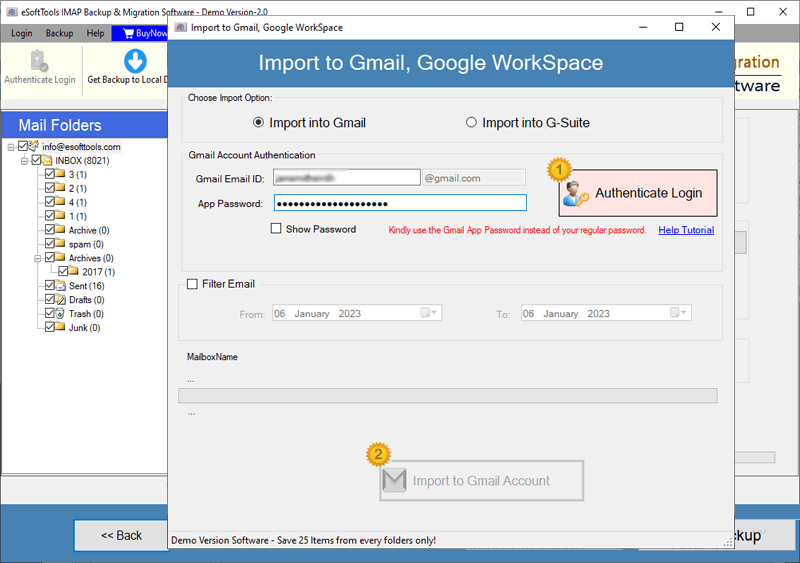
- Allow the software to access your Gmail account via secure authentication.
- Optionally apply email filter by date range function and provide a name to create a folder in Gmail.
- Click on Import to Gmail and to begin the process to Migrate Mail.com emails to Gmail.

This software will Export Emails from Mail.com to Gmail account, while maintaining the overall integrity of emails.
Conclusion
Migrating your emails from Mail.com to Gmail is a smart move for users. Using a professional tool like eSoftTools Mail.com Email Backup and Migration Software makes this process easy. It facilitates simple and secure transfer of your emails. Also, it ensures the integrity of the emails and facilitates selective migration using various options.
Whether you’re switching platforms for business reasons, planning to close your Mail.com account, or just want to back up your data, this tool provides a safe and efficient solution. Try this method and Export Emails from Mail.com to Gmail—without data loss or manual hassle.
