- Why Do Thunderbird Mailbox Files Become Large?
- Problems Caused by Large Thunderbird Mailbox Files
- Benefits of Splitting Thunderbird Mailbox Files
- The Manual Approaches to Manage Thunderbird Emails
- Key Features of eSoftTools Thunderbird Mailbox Splitter
- Step-by-Step Process to Split Thunderbird Mailbox Files
- Frequently Asked Questions (FAQ)
- Conclusion
Mozilla Thunderbird is one of the most widely used desktop email clients because it is open-source, free, and supports configuring, managing, and using multiple email accounts. However, many users eventually face a common problem: Thunderbird mailbox files become too large, which causes Thunderbird’s performance to slow down.
Additionally, you can split large Thunderbird mailbox files into smaller parts without losing emails. Additionally, in this guide, we will discuss the risks of oversized Thunderbird files and the safest methods to divide Thunderbird mailbox files. So, be with us through the blog till the end and learn how to manage it easily.
Why Do Thunderbird Mailbox Files Become Large?
Thunderbird stores email data in MBOX file extensions. Each folder you see inside Thunderbird, such as Inbox, Sent, Drafts, or any custom folders, is stored in an individual MBOX file.
Over time, these files continue growing as new messages arrive. Users who regularly receive emails with attachments, newsletters, or business emails, or project-related communications often end up with mailbox files that are several gigabytes in size.
The common reasons for Thunderbird mailbox files becoming larger include:
- Store multiple years of emails
- Emails with large attachments
- Archived business emails
- Configure Multiple email accounts in Thunderbird
- Heavily spam emails arrived
Consequently, these circumstances can increase the size of Thunderbird files and negatively impact Thunderbird’s performance.
Problems Caused by Large Thunderbird Mailbox Files
Many users ignore removing spam and unwanted emails from their mailbox, which eventually causes Thunderbird to show performance issues. An oversized Thunderbird folder (Inbox, Sent, Drafts, or Deleted Items) can create several problems.
- Slow Thunderbird Performance – When a Thunderbird mailbox folders goes large is size, it requires more time to load, search, and process.
- Increased Risk of Corruption – Furthermore, large Thunderbird mailbox files are more vulnerable to corruption. Unexpected system shutdowns, power failures, or Thunderbird crashes can damage these files, preventing users from accessing or viewing their emails.
- Difficult Backup Process – Backing up and managing large Thunderbird mailbox files is more difficult than handling several smaller files.
- Risk in Data Transfer – Transferring large Thunderbird mailbox files can be risky, and they may lead to data corruption during transfer to another computer.
Benefits of Splitting Thunderbird Mailbox Files
Splitting or dividing large Thunderbird mailbox folders into smaller files provides multiple advantages such as-
- Faster and quick Thunderbird performance
- Neat and Clean Mailbox data
- No data corruption risks
- Easy to transfer Thunderbird files from one computer to another
- Faster email searching
The Manual Approaches to Manage Thunderbird Emails
Method 1: Organize Emails into Multiple Folders
Alternatively, users can create additional subfolders and manually move emails into them. This is one of the simplest techniques for managing emails in Thunderbird.
Furthermore, this method reduces the size of individual Thunderbird mailbox files and ensures that the data remains easily accessible within the Thunderbird application.
The Limitations
However, this is not a practical method for managing thousands of emails across multiple folders. Sorting emails manually is time-consuming and may lead to mistakes or accidental email deletions.
Method 2: Archive Older Emails
Additionally, Thunderbird offers a built-in Archive feature that enables users to move older messages into archive folders. Follow the steps below to archive older emails:
- Select the emails you want to move to an archive folder
- Right-click on the emails
- Choose Archive, and Thunderbird creates archive folders and moves the email messages automatically.
The Limitations
During archiving emails, users often mix the emails in a single archive folder, and it leads confusion to find important emails. Additionally, the archive folder does not provide flexible splitting options such as splitting by size, date, year, or folder.
Method 3: Use eSoftTools Thunderbird Mailbox Splitter Tool
When dealing with large-sized Thunderbird Mailbox files that contain several thousands of emails, eSoftTools Thunderbird Mailbox Splitter can help easily and split by multiple criteria such as split by Size, Date, Year, and Folder.
This automated tool saves significant time and effort by efficiently splitting large Thunderbird mailbox files into smaller files.
Key Features of eSoftTools Thunderbird Mailbox Splitter
- Split Large Thunderbird Mailbox Files Easily – Quickly split oversized Thunderbird mailbox folders into smaller files.
- Multiple Splitting Options – The software offers multiple splitting options such as: split Thunderbird files by Size, Date, Year, and Folder.
- Maintains Email Integrity – The software properly maintains emails with attachments and the original folder structure during the splitting process.
- No Data Loss During Splitting It is a risk-free tool that ensures there is no data loss during the splitting process.
- Supports Bulk Email Processing – Additionally, users can select single or multiple folders at once to efficiently manage and split thousands of emails.
- Improves Thunderbird Performance – After splitting mailbox folders, Thunderbird improves performance.
- Compatible with All Thunderbird Versions – Moreover, users can work with any version of Mozilla Thunderbird, as the software provides complete compatibility.
Step-by-Step Process to Split Thunderbird Mailbox Files
Now, the process is straightforward. Follow the steps below to split Thunderbird files.
Step 1 – Open software and click on Add File/Folder
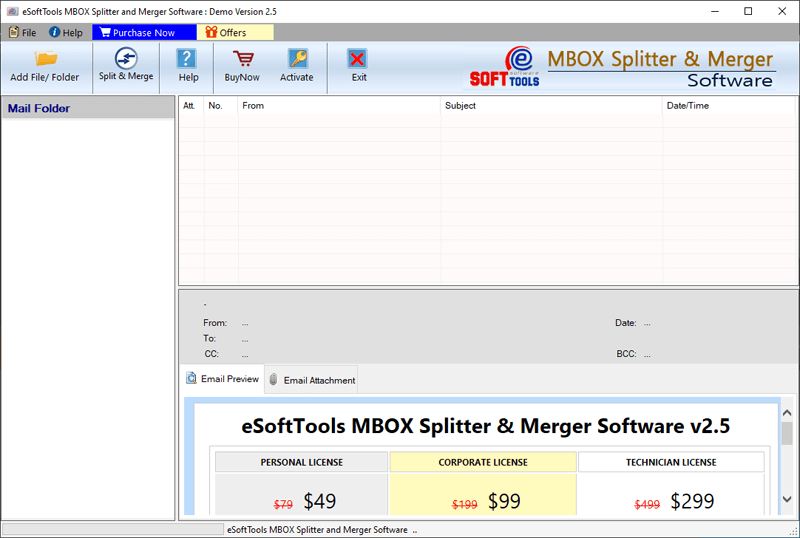
Step 2 – Choose file selection Mode from the options

Step 3 – Preview of All Mailbox and file
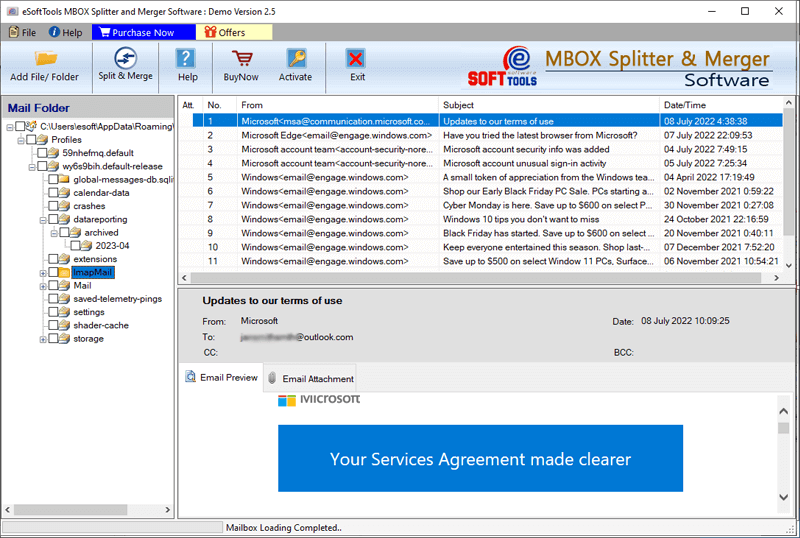
Step 4 – Choose Split MBOX file and Merge MBOX file option

Step 5 – Choose saving option

Frequently Asked Questions (FAQ)
A. Ultimately, users can easily split Thunderbird mailbox files into smaller files without data loss by using the right methods and tools such as eSoftTools Thunderbird Splitter.
A. Splitting Thunderbird files is necessary when your mailbox files grow larger, the Thunderbird application slows down, and searching takes longer time.
A. No, there is no built-In feature in Thunderbird, but through a professional Thunderbird splitter tool, users can split mailbox files by size, date, year, or folder automatically.
A. Additionally, the software offers multiple splitting options, including split by date, split by year, and split by folder.
A. Yes, 100%. The software keeps attachments and email properties.
A. Yes. After successfully splitting Thunderbird mailbox files, users can easily access or import them into the Thunderbird application.
Conclusion
In the above blog, we saw how Thunderbird folders grow and create oversized files, and how they become difficult to manage, back up, and sometimes prone to errors. We also explained how splitting large MBOX files into smaller parts is an easy solution using eSoftTools Thunderbird Mailbox Splitter Software.
The blog also demonstrates that manual methods like creating additional folders and archiving emails can help, but they are not enough when there are many thousands of emails. In that case, we introduced eSoftTools Thunderbird Splitter Software, which works faster and manages everything more efficiently.


