- What is PST File?
- Common Reasons for Computers Crashing and Outlook Data Not Accessible
- Can PST Files Be Recovered from a Dead Computer?
- Where are PST Files Stored in Windows Computer?
- Challenges Users Face While Opening PST Files
- Method 1: Open PST Files Using eSoftTools PST Viewer Software
- Key Features of eSoftTools PST Viewer Software
- Method 2: Recover Damaged PST Files Using eSoftTools Outlook PST Recovery Software
- Steps to Recover Corrupted PST Files
- Frequently Asked Questions
- Final Words
Losing access to an old or damaged computer can be stressful, especially if it contains important Outlook emails, contact items, calendar entries, and attachments. Many Outlook users assume that once a computer crashes, all their Outlook data is gone forever. The good news is that this isn’t always the case. In many situations, Outlook data can still be recovered, even from a computer that no longer works properly.
Furthermore, With the right direction, method and professional tools, users can easily recover Outlook data, open it and access PST emails, contacts, calendar and other items without requiring the original computer where the PST file is created.
In this guide, we will explain in detail how to open PST file from dead or crashed computers and how to open, recover and convert PST file safely using a professional solution.
What is PST File?
PST (Personal Storage Table) is a data file format for Microsoft Outlook. MS Outlook always store mailbox information locally on the user’s computer, that will help in backup, migration or accessing emails on another computer. The PST file keeps the data like all email folders with actual email data and attachments, contacts, calendars, notes, journals, and tasks data.
Common Reasons for Computers Crashing and Outlook Data Not Accessible
For example, There are hundreds of reasons why a computer may crash, and it can make it a difficult situation for users to access their PST emails. Hardware failures, Operating System corruption, Virus Attacks, Accidental deletion, Power Outages, and Hard Drive damage are some of the most common reasons.
When these situations occur, the user thing they loss the control over their Outlook emails and other important data.
Can PST Files Be Recovered from a Dead Computer?
Yes. In many situations, PST files can still be recovered successfully from dead or crashed computers.
If the hard drive is physically working, users can:
- Remove the drive from the damaged computer
- Connect it to another PC using a SATA-to-USB adapter
- Access the stored Outlook PST files manually
OR
If you have a backup copy of the PST file, you can use it directly to access your Outlook data.
After locating the PST file, users can open or recover it using specialized PST Viewer or PST Recovery software.
Where are PST Files Stored in Windows Computer?
Generally, Outlook stores PST files in these default locations:
C:\Users\Username\Documents\Outlook Files
or
C:\Users\Username\AppData\Local\Microsoft\Outlook
Users can manually search the hard drive using the .pst extension to locate Outlook data files.
Challenges Users Face While Opening PST Files
After recovering PST files from a crashed computer, users often face additional issues such as:
- PST corruption
- Large PST file size
- Outlook not installed
- Password-protected PST files
- Inaccessible mailbox folders
- Missing email previews
This is where professional software like PST File Viewer or PST File Recovery becomes extremely helpful.
Method 1: Open PST Files Using eSoftTools PST Viewer Software
If the PST file is healthy and users only need to open and preview the emails and other items, the eSoftTools PST Viewer Software can be more helpful for accessing and viewing PST emails.
This software allows users to open PST files without installing MS Outlook on the computer. The software reads and opens any size of Outlook PST files in a few seconds and lists all mail folders and sub-folders.
Key Features of eSoftTools PST Viewer Software
- Open PST files without Outlook – The software allows users to open and read PST files even if Microsoft Outlook is not installed on the computer. It offers a simple way to access Outlook data directly from healthy, orphaned, or inaccessible PST files without needing any additional setup.
- Preview emails with attachments – Users can easily preview emails along with their attached documents, images, PDFs, and other files.
- View contacts, calendars, notes, and tasks – Apart from emails, the tool also supports viewing all other Outlook mailbox items such as contacts, calendars, notes, journals, and tasks.
- Supports ANSI and Unicode PST files – The software supports both ANSI and Unicode PST file formats created by different versions of Outlook.
- Read large-sized PST files smoothly – eSoftTools PST Viewer Software is designed to handle large PST files efficiently and viewed smoothly without slowing down the system performance.
- Advanced email search options – The software provides advanced search filters to help users quickly locate specific emails.
- Easy-to-use graphical interface – The software comes with a clean and user-friendly interface that makes it simple for both technical and non-technical users to access Outlook PST files without confusion.
- Export PST files in multiple formats – Users can export Outlook PST data into various file formats such as a new PST file, EML, MSG, EMLX, HTML, MHTML, MBOX, Thunderbird, PDF, and more.
- Import PST files into Cloud email platform – The software also supports importing PST files into popular cloud-based email platforms such as PST to Office 365, Gmail, Google Workspace, Yahoo, and any IMAP accounts.
Steps to Open PST Files
Step 1:
Install and launch eSoftTools PST Viewer Software.

Step 2:
Click on the “Select PST” option and browse the recovered PST file.

Step 3:
Load the PST file into the software.

Step 4:
Preview all mailbox folders and emails instantly.

This solution is ideal when the PST file is accessible and not severely corrupted.
Method 2: Recover Damaged PST Files Using eSoftTools Outlook PST Recovery Software
eSoftTools Outlook PST Recovery Software is an advanced tool specifically designed to recover inaccessible PST files and to convert PST files to multiple other formats. The software also provides a preview for emails, contacts, calendar and other items within the software.
Major Features of eSoftTools Outlook PST Recovery Software
- Recover Outlook Emails – The software scans inaccessible PST file deeply and restores PST file items with high accuracy. Through the software, users can recover Outlook emails with attachments, contacts, calendar, notes, journals and other data.
- Large-Sized Outlook PST Recovery – eSoftTools Outlook PST Recovery Software is 100% capable of recovering data from large-sized PST files without file size limitations.
- Preserve Email Properties – During the recovery process, the software maintains all original email properties, including sender details, recipient information, subject lines, timestamps, formatting, and metadata.
- Preserve Email Attachments – The tool safely recovers emails along with all their attached files such as documents, images, spreadsheets, PDFs, and other attachments.
- Encrypted Outlook PST File Recovery – The software supports recovery of password-protected and encrypted PST files and convert PST emails.
- Maintains Original Folder Hierarchy – during PST file recovery, the software keeps the original mailbox folder structure unchanged and maintains email folders, subfolders, contacts, calendars, and other folders in the same hierarchy as the original PST file.
- Multiple Export Options – Users can export recovered Outlook data into multiple file formats and cloud email platforms such as PST to new PST file, EML, EMLX, MSG, HTML, MHTML, PDF, MBOX, Thunderbird, Office365, Google Workspace, Yahoo Mail, IMAP accounts.
Steps to Recover Corrupted PST Files
Step 1:
Install and open eSoftTools Outlook PST Recovery Software.

Step 2:
Browse and select the damaged PST file.
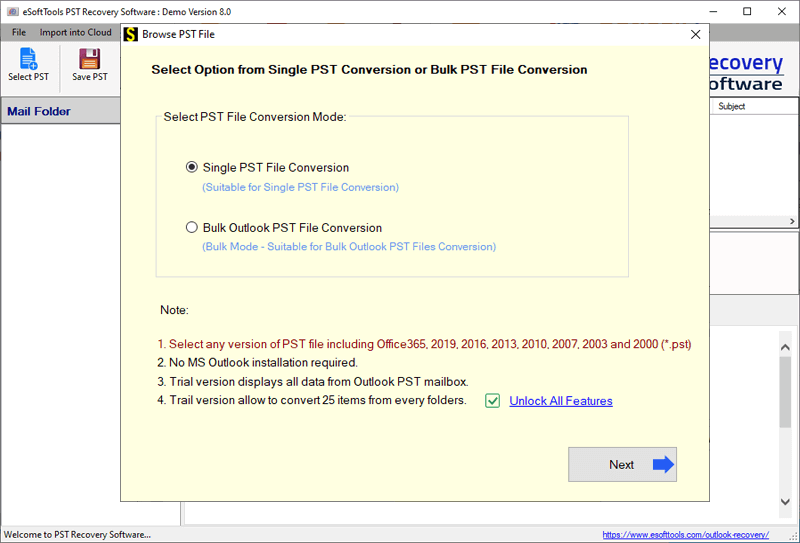
Step 3:
Choose scanning mode for recovery.
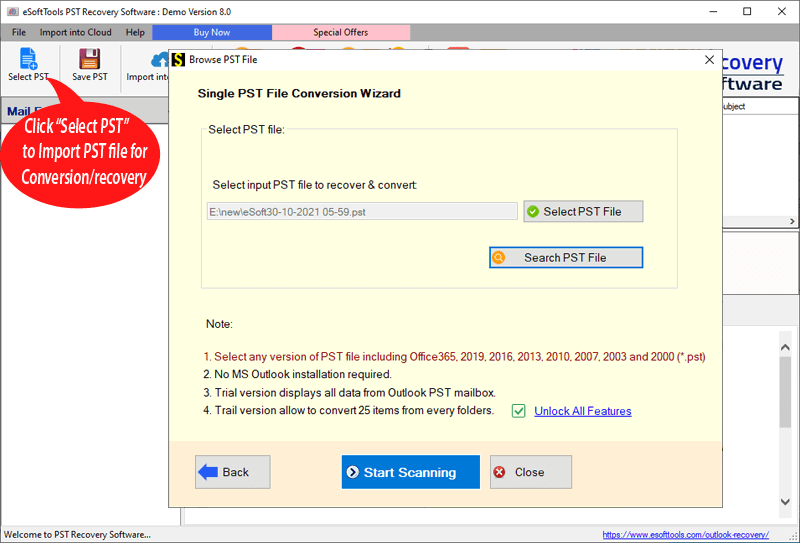
Step 4:
Preview recovered mailbox items.
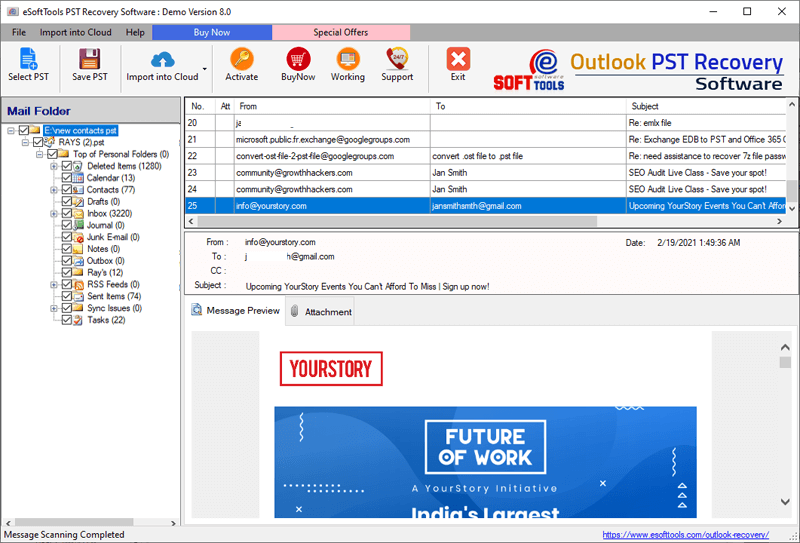
Step 5:
Save recovered emails into a healthy PST file or other formats.

This method is highly useful when Outlook displays errors such as:
- Outlook data file cannot be accessed
- Cannot open PST file
- PST file is corrupted
Tips to Prevent PST Data Loss in Future
To avoid Outlook data loss problems in the future, you always need to focus on the following safety practices-
- Create regular Outlook backups
- Avoid oversized PST files
- Use reliable antivirus software
- Keep Windows updated
- Save backup PST files on external drives
- Use UPS to save data during power outages.
Frequently Asked Questions
A. Yes. Users can open and preview PST files without Outlook using professional PST Viewer software.
A. Yes. eSoftTools PST Recovery software can easily recover PST files and recover mailbox data.
A. PST files are generally stored in:
Documents\Outlook Files\AppData\Local\Microsoft\Outlook
A. Yes. Both PST Viewer and PST Recovery software can recover emails with attachments from inaccessible PST files.
A. Yes. Both eSoftTools PST Viewer Software and eSoftTools PST Recovery tool support large-sized PST file recovery and conversion.
A. Yes. Both PST Viewer and PST Recovery software allow users to preview email attachments.
Final Words
In this blog, we covered how to recover Outlook PST file data from dead or crashed computers in detail. We also introduced two advanced solutions for saving PST file emails and other data. We also explained how you can retrieve your PST file if your computer has crashed but the drive remains accessible.
For simply opening and viewing Outlook PST files, eSoftTools Free PST Viewer Software provides an easy and reliable solution without requiring Microsoft Outlook installation.
However, if the PST file becomes inaccessible after the crash, eSoftTools Outlook PST Recovery Software helps users repair and recover inaccessible Outlook data safely.
Using the right software solution, you can easily save important emails, attachments and other business or personal emails from permanent loss.

