Introduction
PST files are the best-suited file format for offline use in Microsoft Outlook to store email messages, contacts, calendar and other things. But this is very challenging for users who want to access email across multiple devices or migrate to web-based email platforms. Many users today are moving from desktop-based email clients to cloud-based webmail services for quick email accessibility from anywhere with any device.
If you are the one who plans to import PST to IMAP Webmail accounts, such as Gmail, Yahoo, or domain-based email accounts, then this guide will walk you through the best methods and steps to achieve this migration smoothly. In this blog guild you will go through both manual and professional automated solutions.
What is a PST File?
A PST (Personal Storage Table) file is a data file used by Microsoft Outlook to store emails, contacts, calendars, and other mailbox items locally on your computer.
Common Uses of PST Files:
- Email backup and archiving
- Data migration between systems
- Offline access to Outlook data
- Recovery of old emails
However, PST files are dependent on Outlook, making them less flexible for modern cloud-based usage.
What is an IMAP Webmail Account?
IMAP (Internet Message Access Protocol) allows users to access emails directly on any device, including mobile phones, laptops, desktops, and tablets, from the mail server. With IMAP services, there’s no need to store emails locally— first, freeing up device storage; secondly, ensuring data consistency across platforms; and finally, simplifying access from anywhere.
Combined with platforms like Gmail, Yahoo Mail, and domain-based email services (such as cPanel, business hosting email, and custom servers), IMAP provides a seamless email experience. It keeps all messages synchronized across devices, so any changes made—like reading, deleting, or organizing emails—are instantly updated everywhere, making email management more efficient and reliable.
Benefits of IMAP Account:
- Access emails from any device – With Internet Message Access Protocol (IMAP), you can check and manage your emails from mobile phones, laptops, desktops, and tablets without any limitations.
- Real-time synchronization – Reading, deleting, or organizing emails is instantly updated across every connected device.
- No dependency on a single system – With IMAP, users can easily access emails from any device, with no dependency on a single computer/device.
- No local storage dependency: Emails are stored on the mail server, that reduce the need to use device storage and prevents data loss if a device is damaged or lost.
- Centralized email management: Since emails are stored on the mail server, you can easily manage folders, labels, and messages in one place.
Why Import PST to IMAP Webmail Accounts?
Importing PST files into IMAP webmail accounts is an important step for users who want to move from a local email environment to a more flexible, cloud-based system. A PST (Personal Storage Table) file—commonly used by Microsoft Outlook—stores emails, contacts, and other mailbox data locally on a system. While this works well for offline access, it limits accessibility and synchronization. There are multiple benefits involved in considering importing PST to IMAP webmail accounts-
- Move from Outlook to cloud-based email
- Anywhere, Anytime Access
- Real-Time Synchronization
- Reduced Risk of Data Loss
- Centralized Email Management
- Business email migration to domain accounts
- Avoid dependency on Outlook
Method 1: Using Outlook (Drag & Drop)
Steps:
- Open Microsoft Outlook
- Add your IMAP account (Gmail/Yahoo/domain email)
- Import the PST file into Outlook
- Drag and drop emails from PST folders to IMAP folders
Limitations of Manual Method:
- Requires Outlook installation
- Very slow for large PST files
- Risk of data loss or corruption
- No bulk automation
- Not suitable for business migration
Professional Method (Recommended Solution) using eSoftTools PST to IMAP Migrator
To overcome the limitations of manual methods, using the eSoftTools PST to IMAP migration tool is the best option. This eSoftTools PST to IMAP Migrator offers a simple and efficient way to migrate Outlook data to IMAP-enabled accounts without any complicated setup. It allows users to perform a direct import of PST files to IMAP servers without requiring/installing Microsoft Outlook. The tool supports bulk PST migration to IMAP accounts. It also preserves the original folder hierarchy/structure that ensures the emails remain managed in the original folders after migration.
Follow the steps given below in sequence to easily import PST to IMAP accounts without data loss.
eSoftTools PST to IMAP Migrator Step-by-Step Process-
Step1) First of all, download the software from eSoftTools by clicking the Download button.
DOWNLOAD NOWStep2) Install the software, then open it
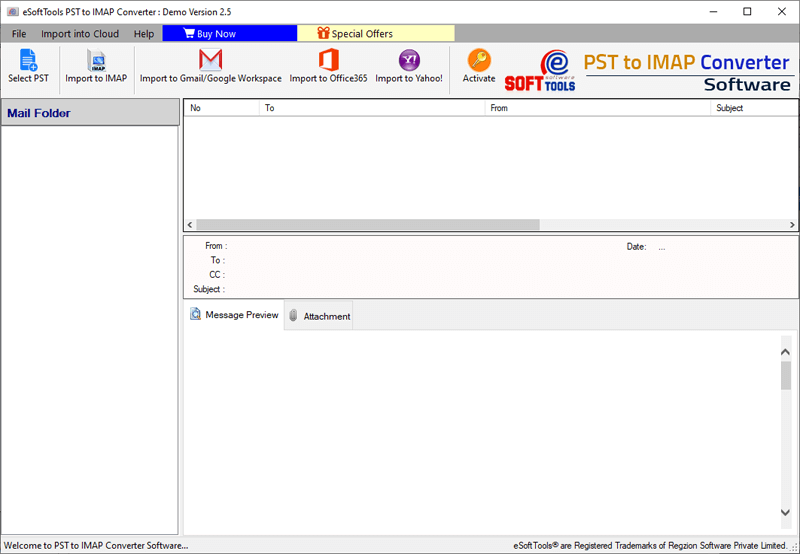
Step3) Click on the “Select PST” button from the toolbar to select the PST file.

Choose the option (Single PST or Bulk PST) migration according to your needs and proceed with the Next button.
Step4) In this step, check the preview of emails, contacts, calendars, notes, and other data within the software—first, verify content accuracy; then, select specific items; and finally, confirm before proceeding.
Now, choose the required folders from the left hierarchy to import into the IMAP account—first, navigate and select; then, apply any filters; and finally, hit confirm to continue.

Step5) Now, click the “Import to IMAP” button from the toolbar to access the migration screen—then, review selected folders; next, confirm settings; & finally, complete the process
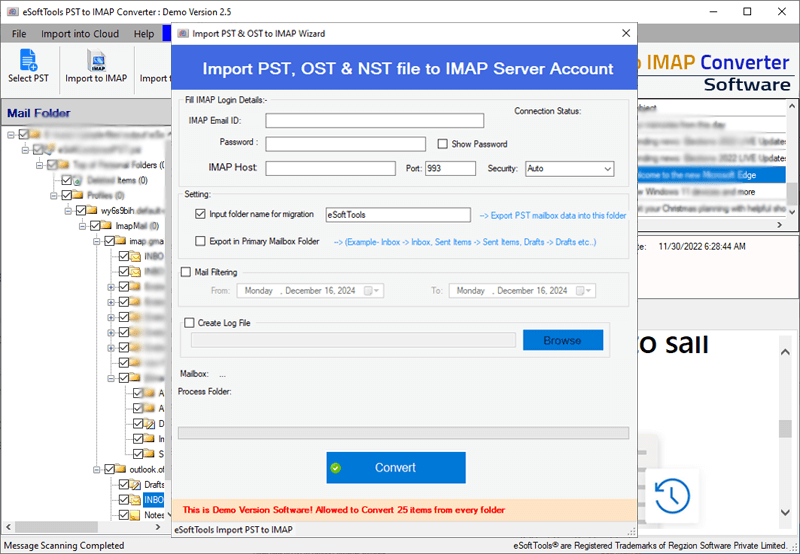
Step6) Provide your IMAP account details —first, enter Email ID & Password; then, add IMAP Host Port; next, select Security type; now, finally, Save to proceed.
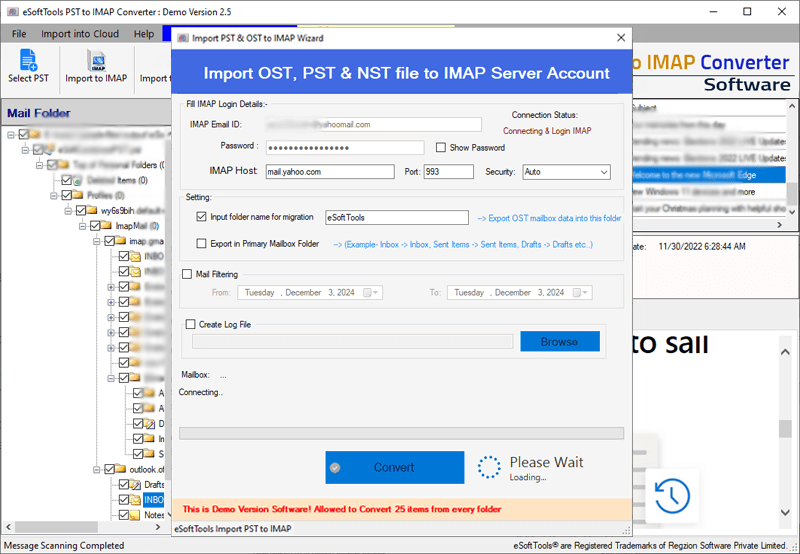
Step7) Now, click on the Convert button to start the migration process.
Now, you are done… All your PST files are imported into your IMAP account.
Features of eSoftTools PST to IMAP Account Migration:
- Direct PST to IMAP Migration Tool – The eSoftTools PST to IMAP Migrator enables users to directly import PST (Personal Storage Table) files into IMAP accounts without any complicated steps.
- No Need for Outlook Installation – This advanced Outlook to IMAP Migration software works independently and does not require Microsoft Outlook during the migration process.
- Bulk PST File Migration Support – Easily migrate multiple PST files at one go. This feature makes it an ideal solution for businesses and IT administrators for handling large-scale email migrations.
- Smart Preview & Selective Migration – The tool offers a complete preview of PST file mailbox items before migration. The software also provides the flexibility to select only the required folders for transfer.
- Maintains Folder Hierarchy & Email Integrity – Preserves the original folder structure along with email properties such as subject, attachments, date, and sender details during migration.
- Advanced Email Filter Options – let users filter emails by date range and other criteria—first, selecting specific periods; then, applying keywords or senders
- Supports All IMAP-Based Email Services – Compatible with all services running on Internet Message Access Protocol (IMAP), including Gmail, Yahoo Mail, Office 365, and other webmail platforms.
FAQ
Ans. Yes, the eSoftTools PST to IMAP migration tool never requires MS Outlook on the computer for migrating PST to IMAP account.
Ans. Yes, IMAP is better because it syncs emails with the server and allows multi-device access.
Ans. Yes, our software smartly supports PST imports to IMAP-enabled domain email accounts—first, handling custom servers effortlessly; then, preserving folder structures.
Ans. Yes, with eSoftTools PST to IMAP Converter, your data remains 100% safe and unchanged during the migration.
Conclusion
eSoftTools PST to IMAP migrator lets you migrate Outlook PST files to IMAP accounts like Office 365, Yahoo, & Gmail. Without Outlook installed, this tool supports batch conversions and handles damaged files.
This application offers smart previews with supported on all Windows versions. Download this software that is best for simple, dependable results.

