Juno Mail Email Backup & Migration Software
An Intelligent tool to backup emails and transfer them across multiple platforms. Easily create secure offline backups in over 9 file formats and migrate your emails to other email services. Complete email export process with complete data security. Get a reliable and stress-free migration experience without any compromises.
- Save emails from Juno Mail accounts to your local storage.
- Move Juno emails to Gmail, Office 365, Yahoo, or IMAP accounts.
- Pick specific folders for a targeted email backup/transfer.
- Maintain email structure, content, & metadata during export.
- Clean, user-friendly interface ensures a error-free experience.

Top Features of Juno Mail Email Backup & Migration Software

Instant Fast Software Delivery via Email

- Save Juno Mail emails locally in multiple formats such as - PST, MBOX, EML, EMLX, MSG, PDF, HTML, MHTML, and Thunderbird.
- Effortlessly move your Juno Mail emails to Gmail, Yahoo Mail, Office 365, and other IMAP accounts.
- Convert individual Juno emails into separate files like- EML, EMLX, MSG, PDF, MHTML, or HTML for easy sharing or storage.
- Instantly import Juno Mail data into your active Thunderbird profiles without any complexity.
- Export Juno Mail folders into a single unified MBOX file or save each folder in separate MBOX.
- Choose specific folders from your Juno mail account to include in backup or migration process.
- Select emails from a particular date range to back up or migrate only what's necessary.
- Maintain original structure, metadata and formatting of each email - no risk of data loss.
- Define your desired folder on your computer's local drive for storing backups and exported files.
- Receive activation credentials via email right after purchase for immediate software access.
- Designed with ease in mind, offers a beginner-friendly UI for users of all technical backgrounds.
- Fully functional on all Windows versions including- Windows 11, 10, 8.1, 8, 7 & legacy versions.
Try before you buy : Backup or migrate up to 25 emails per folder in the free trial version.
Available Functions for Smart Juno Mail Email Backup & Migration
Best Solution for Email Export from Juno Mail Accounts
Reliable tool to simplify Juno Mail account's email backup and migration operations: -
- Secure Local Backups of Juno Emails: - Download emails from your Juno Mail account and save them directly to your computer's local drive. Juno Mail email backup and migration software lets you export to many widely used formats, such as PST, MBOX, EML, EMLX, MSG, PDF, HTML, MHTML, and Thunderbird. Choose your preferred format to archive Juno emails easily.
- Move Emails to Cloud-Based Platforms: - Transfer Juno emails to top cloud services, including - Gmail, Office 365, Yahoo, or any platform that uses IMAP (including business or personal domains). This tool ensures reliable and accurate transfers, accurately maintaining all email metadata, folder structure, file attachments, and other information.
Learn More >> How to Backup & Migrate Juno Mail Emails?


Save Juno Emails in PST Format
Securely back up your Juno Mail emails into PST files that will work in Microsoft Outlook. Easily combine multiple folders into one PST, while completely preserving your folder layout and email metadata (such as timestamps, attachments, sender/recipient information, messages, etc.).
Save Single Emails to Separate Files
Organize email more efficiently by saving each Juno Mail email message as its own file. Available for file export options - EML, PDF, MSG, HTML, MHTML, or EMLX formats. Ideal for sharing, archiving, or categorizing emails on a per-message basis.

Backup Email to MBOX with 2 Options
- Save in Single MBOX: - Merge selected mail folders of Juno Mail into one MBOX file.
- Save in Separate MBOX: - Create separate MBOX files for each folder for easy management.
Save Juno mail folders in MBOX format using two structured ways: -

Import Emails Directly to Thunderbird
Transfer Juno emails to Thunderbird profile instantly, without any manual configuration. This software automatically detects the existing Thunderbird installation and puts Juno Mail emails directly into the folder/path where the Thunderbird email profile data exists.

Selective Folder Backup & Export
Avoid exporting unnecessary data by selecting only the key mail folders you want to back up or migrate. Whether it's Inbox, Sent, or a custom folder, you can select and migrate it specifically. This targeted approach saves space and improves control.

Preserve Email Metadata & Structure
Every detail of your Juno Mail account—such as sender/recipient details, subject lines, formatting, attachments, and date/time—remains intact during both export and transfer. There will be no data alteration or loss during email export operation.

Filter Emails by Specific Date Range
Only want to migrate emails from a certain period? No worries, just use built-in email filter by date function, and select email messages between specific start and end dates. Ideal reducing export size and speeding up migration.

Custom Naming Conventions for Files
During export, apply this setting for assigning name to resulting files. Provide a name to new files using naming format by sender's email address (from), subject, date, or a combination of these attributes. Keeps your exported data clean, easily searchable, and organized for future use.

Export to Custom Folders on Cloud
When migrating emails to Gmail, Outlook 365, Yahoo or IMAP services, you can add new custom folders with the names you want. Easily send and store Juno emails in these new folders. This allows users to isolate Juno mail data from existing mailboxes in the destination account/platform.

Define Preferred Backup Location
Manually choose the directory or device (PC drive, external USB, or network location) where your backups will be saved. Store your Juno Mail email data exactly where you want it to be save and easily access after export.

Beginner-Friendly, Clean Interface
With an easy step-by-step layout, even non-technical users can operate this software with ease. This software is designed to minimize confusion as well as provide expert-level control over backup and migration tasks in just a few clicks.

Runs on All Windows Editions
Whether you are using the latest Windows 11 or an older system like 8.1, 8, 7, XP, Vista or even older, the tool ensures stable performance and full functionality across all major Windows OS versions.

Free Juno Mail Backup/ Migration
Download the trial version of the Juno Mail Export software and test all the features with a limit of 25 emails per folder. Evaluate the performance, accuracy and usability before investing in the full version..
eSoftTools Juno Mail Email Backup & Migration Software

Juno Mail Backup/ Migration software

Juno Mail Email Account Login

Choose required Juno Mail Email account mail folders

Download Juno Mail Email to different formats

Download Juno Mail Email to Local drive

Import Juno Mail Email to cloud apps

Migrate Juno Mail Email to Office365

Migrate Juno Mail Email to Gmail
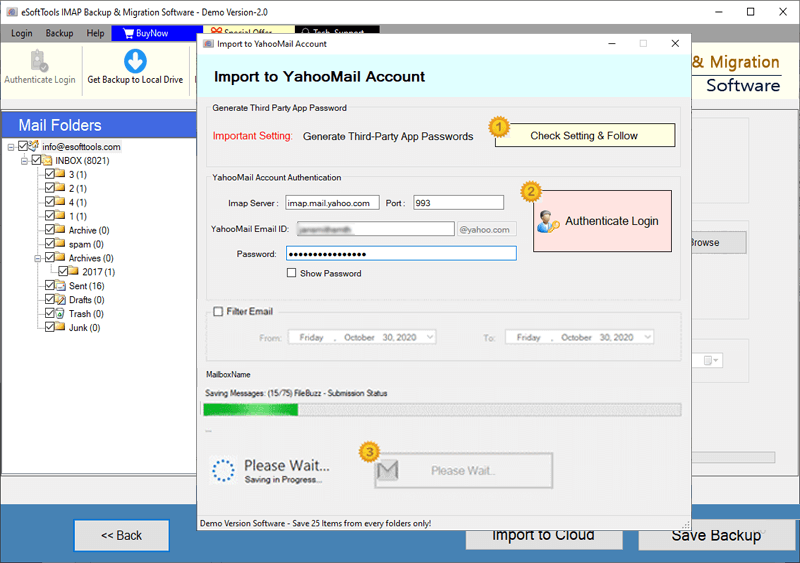
Juno Mail Email export to Yahoo account

Export Juno Mail Email to Outlook.com/ Hotmail

Migrate emails from Juno Mail Email to other imap mail app
Software Comparison
| Software Features | Trial Version | Full Version |
|---|---|---|
| Backup & Migrate Emails from Juno Mail Accounts | ||
| Export Emails to Multiple Formats (PST, MBOX, PDF, EML, HTML, and More) | ||
| Transfer Juno Emails to Gmail, Office 365, Yahoo, and IMAP Mailboxes | ||
| Create Separate MBOX Files for Each Email Folder | ||
| Merge All Folders into a Unified MBOX File | ||
| Directly Import Emails to Thunderbird Profile | ||
| Select and Backup Emails Within a Specific Date Range | ||
| Define Naming Patterns for Exported Email Files | ||
| Full Juno Email Backup - No Limit in Licensed Version | Trial allows backup/migration of up to 25 emails per folder | |
| Download Now | Buy Now |
Software Specification
Trial Limitations
Evaluate all features of the Juno Mail backup and migration software with the free demo. Backup or migrate a maximum of 25 emails per folder before purchase.
Software Info
Version
v6.0
Juno Mail
License
Personal, Corporate, Technician
Language Supported
English, German, Italian, French, Spanish
System Requirements
Processor
Intel® Pentium Class
Operating System
Windows
Hard Disk Space
50 MB of free hard disk space
RAM
Minimum 512 MB is required
Software Delivery
Electronic
YES
Mode
Delivery by E-mail
Supported Windows OS
Works with all windows O/S editions 11, 10, 8.1, 8, 7, XP, Vista, & below editions
Frequently Asked Questions (FAQ)
How to Export/Save Emails from Juno Mail to PC using Juno Mail Backup Tool?
- Download and install eSoftTools Juno Mail Email Backup Software on any Windows PC.
- Open the software and input your Juno Mail login credentials, including email address, password, IMAP server (e.g., imap.juno.com), and port number (usually 993).
- Press the Login button to safely connect and access your Juno mailbox.
- Once logged in, the tool will load and show all folders from your email account.
- Select folders that has the emails you want to back up or transfer from Juno Mail.
- Pick the desired export type from options like - PST, MBOX, MSG, PDF, HTML, EML, EMLX, MHTML, or Thunderbird.
- Apply optional filters like date range, naming format, and choose storage path for saving files locally.
- Click Start Backup to launch the process and export emails from your Juno Mail account.
For step-by-step instructions, check this guide: How to Backup Juno Mail Emails to computer?
How to Migrate Juno Mail Emails to Cloud Platforms like Gmail, Yahoo Mail, Office 365 & more?
- Download and install eSoftTools Juno Mail Migration Software on a Windows machine.
- Run software and enter your Juno Mail login details, including email ID, password, IMAP server (e.g., imap.juno.com), and port number (usually 993).
- Click the Login button to establish a secure connection and fetch all Juno email folders.
- Select the email folders you wish to migrate or choose the full mailbox for complete transfer.
- Click on the Import to Cloud option and select the destination service like Gmail, Yahoo, Office 365, or IMAP for any other supported platform.
- Provide the login credentials for the destination account, including the server and port details.
- Apply filters for date range and assign a target folder name to organize migrated emails.
- Hit the Import/Convert button to begin migrating emails from your Juno Mail account to the selected cloud platform.
For full instructions, see : - How to Transfer Emails from Juno Mail to Cloud Services?
Can I convert my Juno Mail emails into a format for offline reading or printing?
Does this tool support transferring Juno Mail emails to custom/business email accounts?
Is it possible to export each email from Juno Mail as its own separate file?
Absolutely. You can save emails separately in formats like EML, MSG, EMLX, HTML, PDF, or MHTML. You can store each email in a separate file for easy access and storage.
Can I backup or migrate only selected folders from Juno Mail?
Can this software transfer Juno emails directly to my existing Thunderbird profile?
What happens after I buy the software - will I have to wait a long time to use it?
Are there any limitations in the free trial version of Juno Mail Backup or Migration tool?
The free demo lets you backup or migrates only up to 25 emails per folder, giving you a quick experience of all the features. So, you can test the software thoroughly before deciding to buy the full version..