Last updated on July 21st, 2025 at 10:21 am
In today’s digital age, email plays a vital role in both personal and business communications. Many users who use email providers like Runbox webmail eventually want to move to a more versatile platform like Gmail. If you are thinking of doing the same and wondering how to import emails from Runbox webmail to Gmail account, then this blog is for you.
Runbox Webmail is a well-known and secure email service based in Norway. It is available for users who prioritize data security. It offers ad-free email access through a clean web interface.
Furthermore, it supports standard email protocols like IMAP, POP, and SMTP. This allows users to access their emails through email clients and mobile devices.
With Runbox Webmail, users can manage emails, contacts, and folders directly from the browser. It also adds support for custom domains and two-factor authentication for better security.
Although Runbox excels in terms of privacy and simplicity, it lacks productivity tools and smart integration with modern features like Gmail. As a result, many users want to switch to Gmail for a more feature-rich email experience.
Also Read: – How to Export Mailfence Email to Gmail Account? – A Complete Guide
Google Gmail – Overview
Gmail is a free email service that the most famous brand “Google” offers to users. It tops the list of most used email services in the world. It is known for its powerful features, intuitive interface, and seamless integration with other Google tools like Drive, Calendar, and Meet.
Gmail offers 15 GB of free storage, smart spam filtering, smart search capabilities, and real-time syncing across different devices.
Gmail also supports labels, filters, and many other options that help users organize emails smoothly. Its robust security features and AI-powered phishing protection make it a preferred choice for both personal and business use.
Why Transfer Emails from Runbox Webmail to Gmail Account?
Here are some common reasons why users might migrate from Runbox to Gmail: –
- Change email provider: Gmail offers features, such as a modern interface, improved search functionality, integration with Google Workspace tools like Drive, Calendar, and Meet, and easy login across different web platforms. This makes users prefer to switch to Gmail and also transfer emails from Runbox webmail.
- Additional backup of emails: Transferring your emails to Gmail provides an additional layer of security by storing your messages on a different platform, reducing the risk of data loss.
- Storage management: Gmail provides 15 GB of free storage and efficient management tools. So, if users exceed the storage limit in Runbox, they can move some emails to Gmail storage to manage space and mailbox size growth issues.
Method 1: Import Runbox Emails using Gmail’s Mail Fetcher (POP3)
This is a free method in which Gmail pulls emails from Runbox using the POP3 protocol. Follow the given steps to use it: –
- Open a web browser in your PC and login to your Gmail account.
- Click on the Gear icon > See all settings.
- Go to the “Accounts and Import” tab.
- Under “Check mail from other accounts“, click “Add a mail account“.
- Enter your Runbox email address and click Next.
- Choose “Import emails from my other account (POP3)“.
- Enter the following info:
- Username: your full Runbox email address
- Password: your Runbox password
- POP Server: mail.runbox.com
- Port: 995
- Enable “Always use a secure connection (SSL)“
- Choose other options like:
- Label incoming messages
- Leave a copy on the server
- Click on the Add Account button and start import emails from Runbox Webmail to Gmail.
Note: This method only gets emails from the inbox and cannot import custom folders.
Method 2: Automated Runbox Webmail Migration Software
If you want a more thorough, professional, and faster migration experience, the best option is to use a dedicated Runbox webmail email migration tool. One of the finest tools available for this is eSoftTools Runbox Webmail Backup & Migration Software.
This tool is for migrating entire email accounts from Runbox to Gmail using IMAP. It supports folder-wise email transfer (inbox, sent emails, drafts, etc.), specific email transfer with date range filter, and many other smart functions.
How to use eSoftTools Runbox Email Migration Software?
To migrate emails from Runbox to Gmail using this tool, follow these general steps: –
- Download and install eSoftTools Runbox Backup and Migration software for Windows O/S. (Demo available to test export of up to 20 emails per folder).
- Launch the tool and select IMAP/Webmail as the source.

- Enter your Runbox credentials (Email Address and Password) and IMAP server details (mail.runbox.com, port 993 with SSL).

- Click on Login button and load mailbox folders, then choose folders you want to migrate.

- Press Import to Cloud button, then select the Import to Gmail option.

- Enter Gmail credentials (Email Address, and App Password) and click on Authenticate Login.
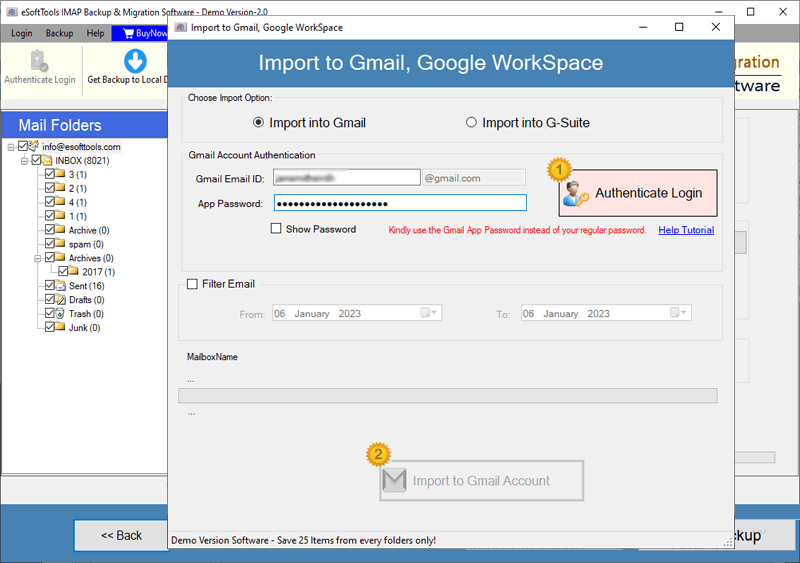
- Add a name for the folder to create on Gmail account to store Runbox emails.
- Use date filter if you only need to migrate emails of specific timeframes.
- Lastly, click on Import to Gmail Account button and start email migration.

Keep track of the progress and once the process is complete, check your Runbox emails in your Gmail account.
Conclusion
It is possible to migrate emails from Runbox to Gmail. There are two ways to do this: one is manual and the other is a special software. Gmail’s built-in mail fetcher is a good solution for basic needs, but it is not suitable for users with many folders and large mailboxes or with more complex migration needs.
For a hassle-free, accurate and professional transfer, we recommend using eSoftTools Runbox IMAP migration software. It ensures a smooth experience; complete folder transfers and avoids the common drawbacks of manual methods.
Are you ready to transfer? Try this tool now and get all your important Runbox emails to Gmail without any hassle.
