Introduction
In today’s world, cloud email platforms have become highly popular and are widely adopted by organizations and individuals. Everyone wants to access their business as well as personal emails from anywhere through any device. Still, lots of MS Outlook users store their emails locally in PST files and depend on the computer where their email account is configured. But when they decide to move to a cloud or remote server, they need to import PST files to IMAP server.
In this blog discussion, we will step-by-step walk you through an automated solution that helps import emails from Outlook PST to IMAP server without any headaches. Specifically, The software introduced here- eSoftTools PST to IMAP Converter, is a fast, reliable, and user-friendly tool that offers error-free migration with high quality.
What are PST and IMAP?
- PST (Personal Storage Table): PST files are local email storage files created using MS Outlook. The PST files store email messages, contacts, calendar, notes, journals, tasks, and appointment entries.
- IMAP (Internet Message Access Protocol): IMAP is an email protocol that, in addition, provides flexibility to access and manage emails on a remote server through multiple devices, like Mobile, Tablets or any remote computers.
Also Read: – How to Upload/ Import PST to Office 365 mailbox? Quick Methodo?
Benefits of Import PST Files to IMAP accounts
There are many unique benefits of enrolling when you import PST files to an IMAP server. Here are a few of them:-
- First, there are no local computer dependencies to check and reply to emails.
- Seconds, you can easily access emails from any device, like Mobile or tablets.
- Third, save local computer storage space because after you import PST files to IMAP, the server stores all emails, and you can delete the PST file from your computer to free up space.
- Fourth, the PST file has the chance of corruption, accidental deletion and local system failure, while IMAP keeps emails secure on a managed server and without risk of data loss.
The Steps and the Way of Migration
- Manual Method through Outlook
- Best Method — eSoftTools PST to IMAP Converter
1) Manual Method through Outlook
If your Outlook PST file is small in size, then you may attempt the drag-and-drop method in Outlook:
- Open Outlook and go to File → Open & Export → Open Outlook Data File (.pst).
- Browse and open your PST file.
- Drag and drop emails or folders from the PST into your IMAP mailbox.
- Wait for sync.
This manual method works only with small PST archive files and, moreover, comes with several serious limitations and risks.
Drawbacks of the Manual Method
- Extremely slow process – Outlook syncs messages very slowly and takes days to sync if the PST file is large in size.
- Risk of Sync Failures- If any time Sync failed due the network issues, then Outlook freezes and restarts the process, leads to duplicates on the IMAP account.
- No Filtering Option– There are no filters involved, and sync whole emails to IMAP with duplicates.
- Data Corruption Risk- If Outlook crashes for any reason, the manual process fails and may damage your IMAP folders.
2) Experts Recommended Solution- eSoftTools PST to IMAP Converter Software
Because of the manual process and its challenges, many experts, professionals, and organisations never take the risk of their emails and prefer an automated approach using eSoftTools PST to IMAP Converter Software and save their personal as well as organisational emails by a simplified approach to migrate PST files to IMAP accounts.
This migrator tool helps users to securely import Outlook PST files (including email messages, attachments, contacts, calendar and other data) directly to IMAP-enabled accounts such as Gmail, Yahoo Mail, Office 365, and other domain-related email servers without requiring MS Outlook installation.
Why Use eSoftTools PST to IMAP Migration?
Choosing the best PST to IMAP Converter software from eSoftTools Software offers several benefits.
- Easy to support single PST files and bulk PST files to Import into IMAP accounts.
- You can easily import password-protected PST files using this software.
- No Outlook installation or role is required during the migration.
- Selective folder migration availability.
- Email filtration according to dates is available.
- After importing from PST to IMAP, all the folder structures are mentioned.
- All types of email servers support importing PST files.
- A good thing is the availability of a Demo version to test the software.
Step-by-Step Working Processes of eSoftTools PST to IMAP Migrator
Step 1) First of all, download the software from eSoftTools by clicking the Download button.
Step 2) Install the software and open it.
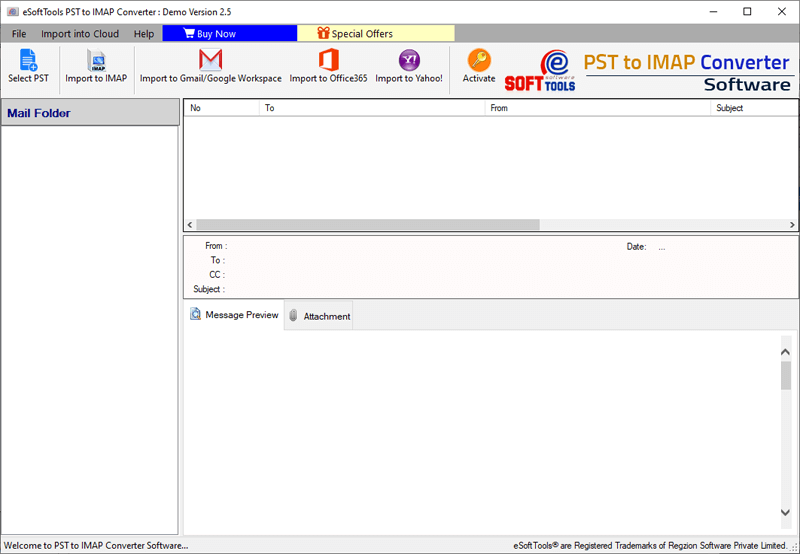
Step 3) Click on the “Select PST” button from the toolbar to select the PST file.
Here, you can choose to import a single or multiple PST files into an IMAP account.

Step 4) In this step, you can see the preview of emails, contacts, calendar, notes, and other data.
Now, choose the entire folder or a selective folder for importing into your IMAP account.

Step 5) Now, click on the “Import to IMAP” button from the toolbar to directly jump to the screen of migration.
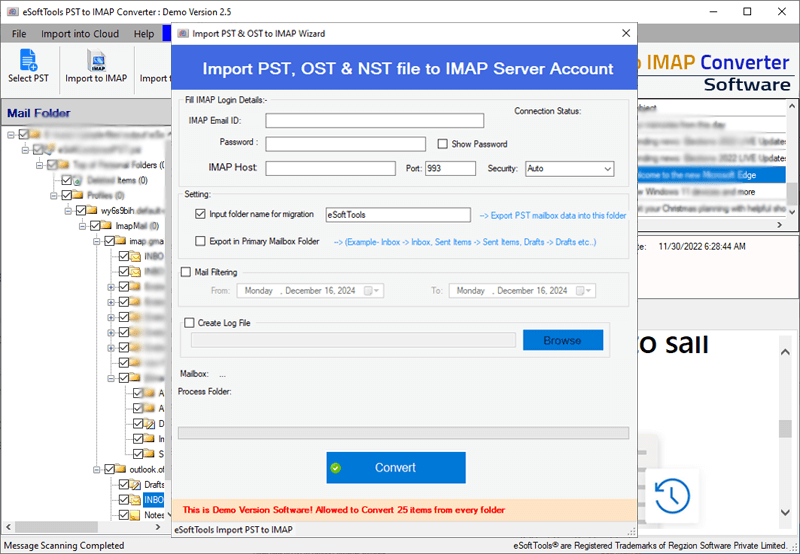
Step 6) Fill here your IMAP account details like IMAP Email ID, Password, IMAP Host, Port, and Security.
Once it’s done, you are ready to import PST to IMAP.
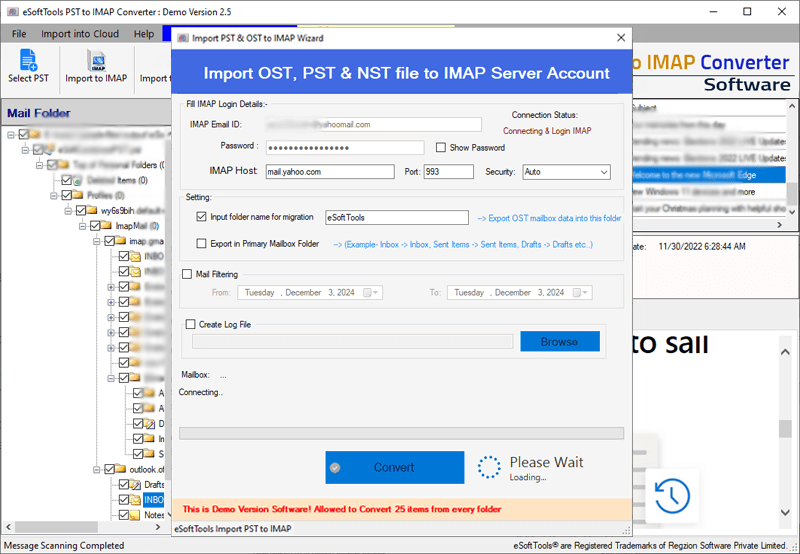
Step 7) Finally click on the “Convert” button to start the migration process.
FAQ (Frequently Asked Questions)-
Ans. Of course, you can. The eSoftTools PST to IMAP Converter software does not require MS Outlook installation and finally imports PST files to IMAP accounts.
Ans. Yes, Additionally, you can add multiple PST files to the software and import them together.
Ans. Absolutely! This software efficiently manages folder levels, including multi-level structures, and transfers emails to their original folders.
Ans. No, the software does not impose any limits on PST file loading; in fact, you can import unlimited-sized PST files to the IMAP server.
Ans. Yes. You can import PST files to IMAP as well as in Gmail and Office 365.
Conclusion
Accessing emails from any device and anywhere has become a necessity for everyone today. Similarly, migrating PST files to an IMAP account is a smart strategy to keep your emails accessible at all times. In the above discussion, we explained both the manual method and a professional solution to achieve this goal. I have shown the complete process of manual techniques, along with their drawbacks, limitations, and risk factors. I have also introduced the professional and fully automated software solution — eSoftTools PST to IMAP Converter — which helps import PST files to IMAP without losing a single bit of data and securely migrates emails to IMAP, Gmail, Yahoo Mail, and Office 365 accounts.