Introduction
Have you ever tried to open EML files and nothing happened? Or maybe you received an error message saying Windows cannot open the file. This is very frustrating, especially when the EML files contains import business emails, personal emails, or any important data inside it.
The EML files are generated by multiple email applications such as Windows Live Mail, Outlook Express, Thunderbird, eM Client, and many others. However, opening the EML files is not always easy when the email program is no longer installed on the computer.
EML file not opening problems can be easily resolved in simple steps in this guide. The guide covers most of the common reasons EML files fail to open and explains how to open them in 10 proven solutions.
Why Is Your EML File Not Opening?
EML file is a standard email message format that stores email body data, sender information, recipient details, subject line, attachments and other metadata. There are several reasons why an EML file may not open by double-clicking.
- If the right email client program is not installed on the computer
- The file extension was changed accidentally
- The EML file was created by an email application that your current email client does not fully support.
- Malware injected in the email message
- The EML file was not downloaded completely.
- Sometimes, the EML file is corrupted
10-Proven Fixes If EML Files Not Open
Fix 1: Check the File Extension
Before trying anything, focus on the file extension of the email message. EML files use the default .eml extension, which Windows easily recognizes when opening them. So, make sure the email file ends with .eml and not .eml.txt or another extension. Windows sometimes hides known file extensions, that makes confusing users to rename the file incorrectly. In File Explorer, check the settings and enable the “File Name Extension” option.
Fix 2: Try Opening the EML File in Another Email Client
Multiple email clients support EML files and If your current email application cannot open them, try another email client, such as Thunderbird or Windows Live Mail. If the other application opens the EML files properly, repair or reinstall your current email client application.
Fix 3: Set the Correct Default Program
Sometimes, users mistakenly set the default for opening EML files with the wrong email application. To resolve this, click on the mouse Right-click on the EML file, choose the option “Open With”, and select the compatible email application to open the EML file.
This simple trick makes your EML files usable and accessible in your selected email application.
Fix 4: Copy the EML File to Your Local Drive
If your EML files reside on a USB drive, external hard drive, or network location, they may fail to open. In that case, copy the EML files to your local drive to resolve the issue.
Fix 5: Scan the EML File for Malware
Email attachments are a common target for malware injection. If EML files contain infections, then most email client applications may not open them. To resolve this issue, scan EML files with antivirus software before trying to open them.
Fix 6: Check Whether the EML File Works Properly
Incomplete downloads, file transfer errors, or storage issues may corrupt an EML file. These files may not open or display their content properly due to corruption.
Fix 7: Remove Read-Only Restrictions
Any downloaded files (EML) from the internet or from a network location, Windows blocks access to those files and marks them as Read-Only. To verify and resolve the issue, right-click on the EML file, click on the Properties option, and check whether it has the Read-only or Blocked option enabled. If the file remains blocked, clear these checkboxes and click Apply to save the changes.
After that, try to open the EML files with your currently installed email application.
Fix 8: Repair File Association Issues
File association mismatch due to registry corruption or incorrect settings. Sometimes third-party software makes these changes in the registry and leads to broken EML file associations.
The only option to resolve this is to reset the registry settings for EML file association to normal behaviour.
Fix 9: Upgrade or Repair Your Email Application
Repairing, reinstalling, and updating email clients to the latest version can be a suitable fix for EML file opening issues. So, try it once and check if you successfully open and read EML files.
After attempting these points, if you are still unable to open and read EML files, then you may need to use a professional solution as mentioned in Fix 10.
Fix 10: Convert EML Files using eSoftTools EML Converter Software
eSoftTools EML Converter Software offers an expert solution for EML file-related issues. With this software, users can easily open EML files, read their content, and convert EML files into multiple other file formats.
If none of the previously mentioned Fixes worked for you, then you can consider using eSoftTools EML Converter Software and freely open, read and convert EML files. The software has many features built-in that a user needs to use during the EML file conversion.
Key Features of EML Converter Software
- This software runs on Windows OS and helps users easily open EML files without an email client.
- Single as well as Batch EML file processing
- The software supports all email clients that generate EML files.
- The software properly manages folder hierarchy
- EML file preview available in the software
- Successfully preserves email metadata and properties
- Several conversion options for EML files such as EML to PST, EMLX, MSG, HTML, MHTML, PDF, MBOX, Thunderbird, CSV, Office365, Gmail, Google Workspace, Yahoo and IMAP account.
- Maintains original email formatting, attachments, and metadata
- Compatible with all Windows versions
Step-by-Step Instructions to Use EML Converter Software
Step 1- Download and Install the Software from the official website

Step 2 – Click the “Select EML Folder” button to browse and choose the folder containing the EML or EMX files you want to convert.

Step 3 – Once you select all EML folders, the software will initiate the file loading process, as demonstrated in the screenshot below.

Step 4 – Click each EML file to preview its contents. Select the required emails and folders for conversion.
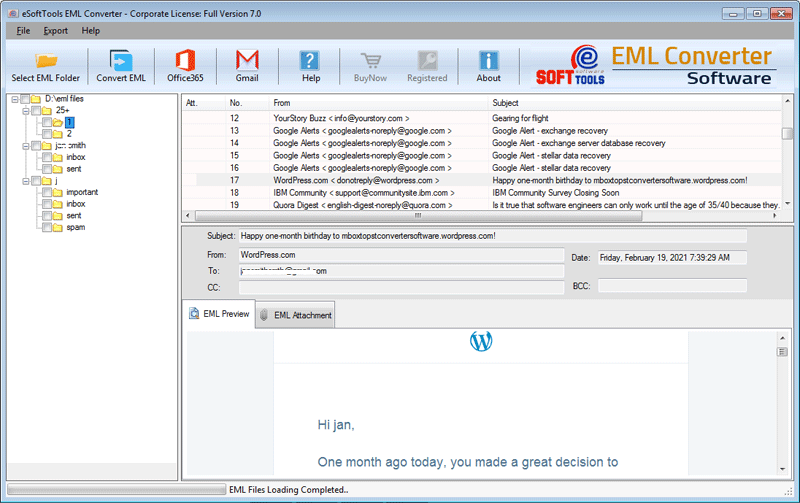
Conversion Options Offered by eSoftTools EML Converter – The eSoftTools EML Converter supports seven different file formats for converting EML files. It also allows users to export EML files directly to cloud platforms such as Office 365 and Gmail.
Recommended Solution
| Situation | Recommended Solution | Action |
| Need to convert EML/EMLX file and folders to PST file | Use eSoftTools Convert EML to PST | |
| Need to convert EML/EMLX file to Office 365 | Use eSoftTools Import EML to Office 365 | |
| Need to import EML to IMAP | Use eSoftTools Import EML to IMAP | |
| Need to extract EML Attachment files | Use eSoftTools EML Attachment Extractor |
Frequently Asked Questions (FAQ)
A – Several reasons can prevent EML files from opening: incorrect file association, an email client being unavailable, or incorrect file copying or downloading.
A – Try the recommended EML Converter Software to smoothly open EML files without Outlook and convert them to multiple other file formats.
A – The recommended EML Converter Software has batch EML file processing features that can 100% help in open hundreds or thousands of EML files without needing any additional tools.
A – Yes. With EML Converter tools, you can export EML files directly to PST format without requiring Outlook installation.
A – Yes. The software preserves 100% of every email with attachments, formatting and metadata during opening and converting EML files.
A – The software can export EML files into PST, EML, EMLX, MSG, HTML, MHTML, MBOX, Thunderbird, PDF, Office365, Gmail, Google Workspace, Yahoo Mail and any IMAP accounts.
A – Yes. The software 100% maintains folder structure in conversion.
Conclusion
In this blog, we focus on fixing EML file-opening issues and learn multiple fixes to resolve them. The blog describes clearly why EML files are not opening and provides proven fixes for the issues.
We also introduce a professional software solution such as eSoftTools EML Converter Software that helps users easily open EML files and convert them to multiple other file formats. This software is very helpful in managing and converting thousands or millions of EML files. Try its demo version software and check for yourself its working process and how it opens EML files and converts them into several file formats.
