How to Migrate / Import PST to IMAP Account?
Check out this PST to IMAP Converter Software to Migrate Outlook PST to IMAP Webmail profiles.
Use eSoftTools PST to IMAP Converter Software to migrate PST to IMAP based web email services. Export Outlook mailbox items (emails, contacts, calendar, and more) from PST files. Transfer Outlook items from PST file to IMAP mail service with direct process. Safely transfer single as well as multiple PST file to IMAP account at one time with ease.
Download and Install eSoftTools PST to IMAP Converter Software in your windows-based computer.
Run the software and click on the "Select PST" button.
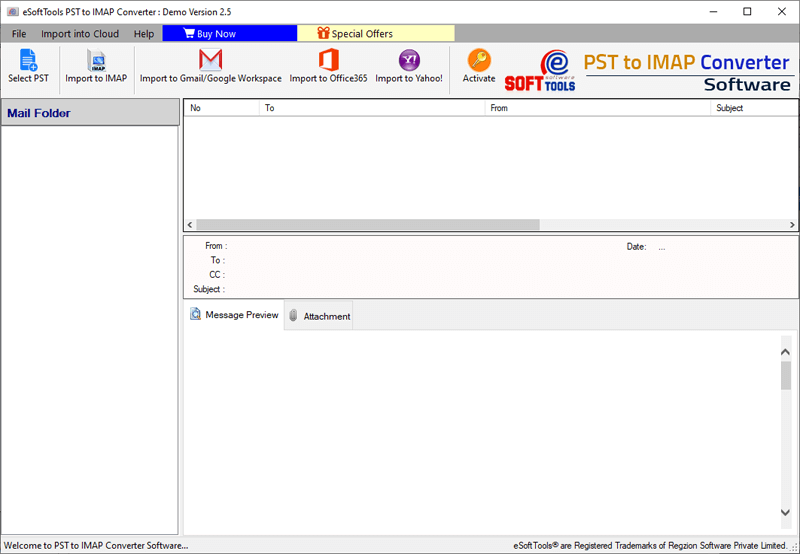
- Select a migration mode from the available options: -
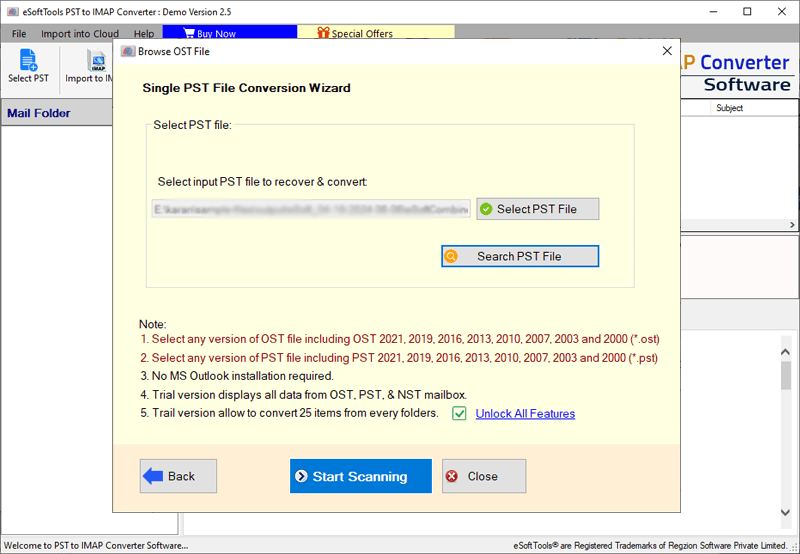
- Single PST file conversion- Converting a single PST file at a time. (search or select a PST file)
- Batch PST File Conversion- Converting multiple PST files in a single job.
- Choose Configured Outlook Profile- Select configured Outlook profile for conversion.
After choosing a conversion method, hit on the Next button.

Import PST file (single or multiple) and press Start Scanning button to load their inner data in software.
Load PST files and its inner data in software's preview panel.
Get a preview of every Outlook items that available inside PST file.
Choose folder for exporting from PST files.

Apply below given steps to Export PST to IMAP, Gmail, Office365, and Yahoo Mail Account
Steps to Import Outlook PST to IMAP Mail Server
After folder selection, press Import to IMAP button.
Provide IMAP account details: - Email Address, Password, Host name, and Port.
Import Options : -
- Create New Folder and Import: - Create a new folder to IMAP mail server and store imported PST file data.
- Import in Primary Mailbox Folder - Directly import emails to default mail folders in IMAP account.
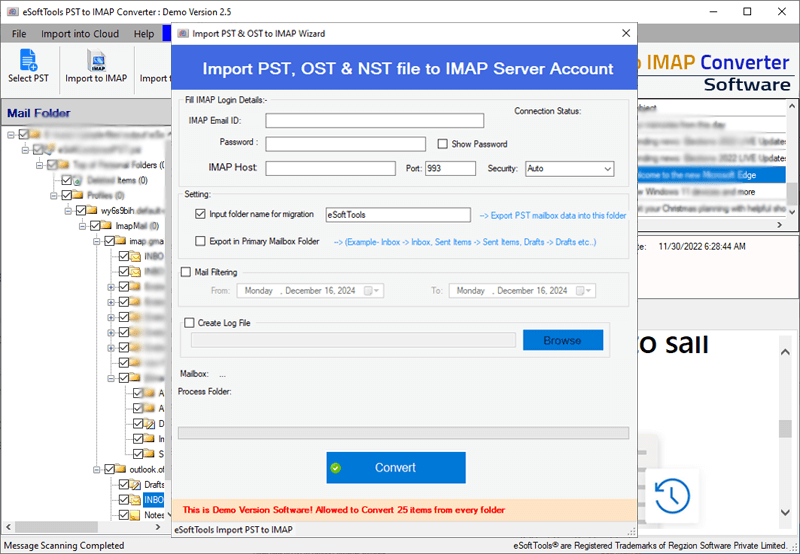
Other needed options -
- Mail Filtering: - Make selection of a date range of emails those you want to export from PST file specifically by chooseing their dates.
- Incremental Migration: - Check this option if you wish to import PST emails incrementally to imap server.
- Create Log File: - Select a location from your computer to save log file.
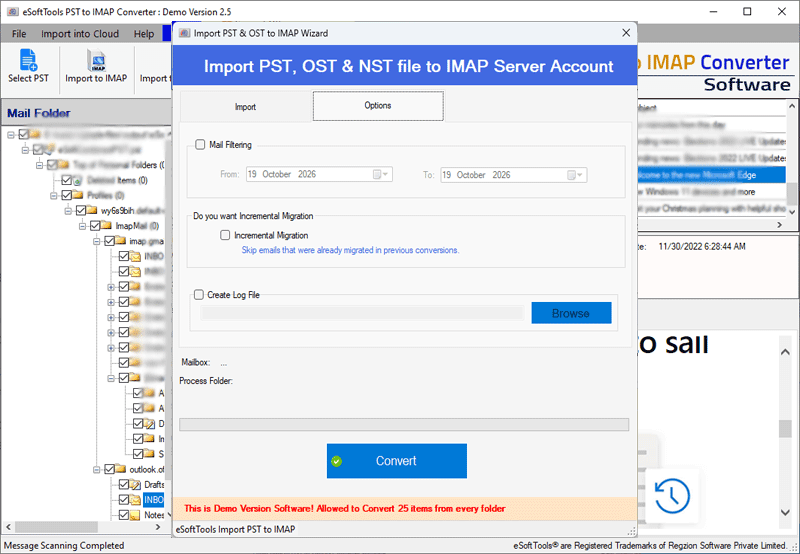
Finally, click on Convert and begin data migration from PST to IMAP account.
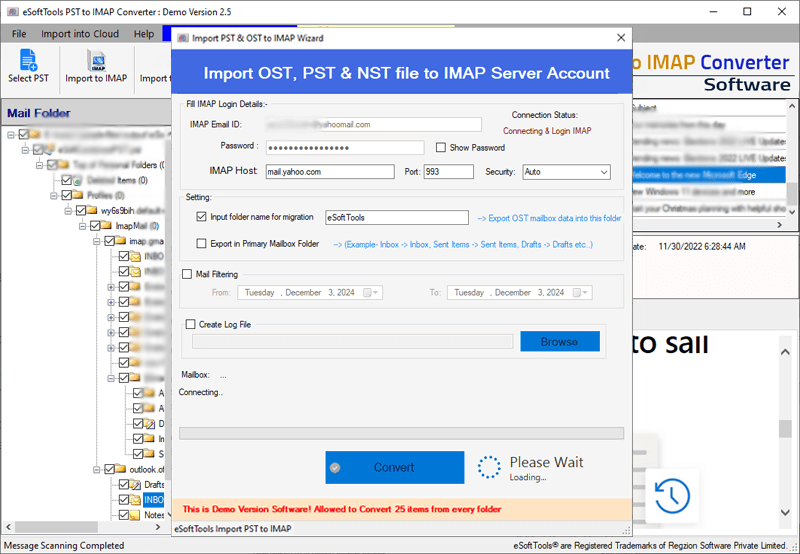
Steps to Migrate Outlook PST to Office365
Press the Import PST to Office365 button from menu bar.
In the next opened screen, add your Office365 account's email address.
Select any input option: -
- "Export to Primary mailbox"
- "Input New Folder name for migration"
- "Export in -> Inplace Archive Folder"
Select "Mail filter" option for exporting emails from PST files of a selective date range.
Select log file option and select the path where you want to preserve generated log file.
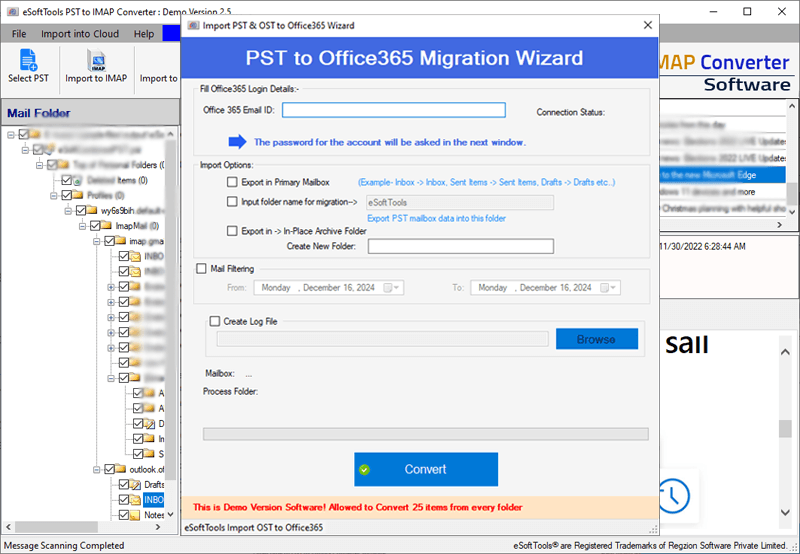
Lastly, click on Convert and start the process to migrate PST to Office365 Account.

Steps to Export/Migrate PST to Gmail or Google Workspace (bussiness)
Press the Import PST to Gmail/Google Workspace button.
In the next screen, input Gmail or Google Workspace account's email address and Google third-party app password
Click on Authenticate Login button and sign in with your account.
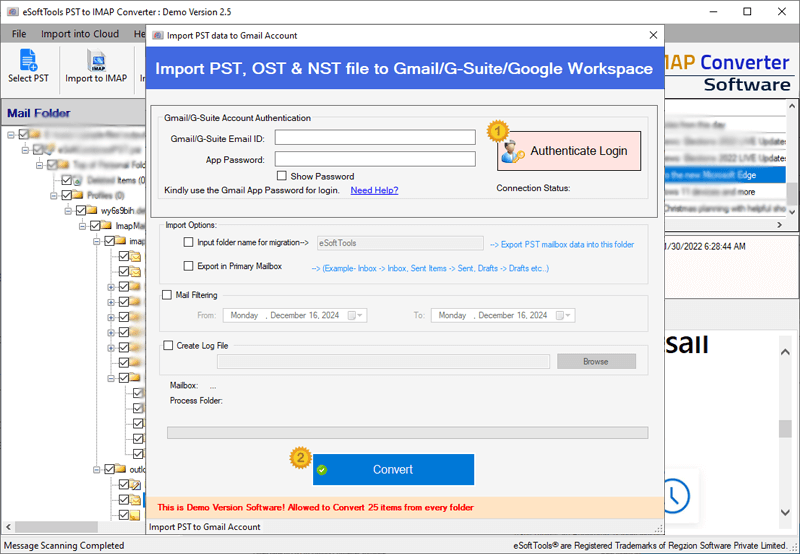
Choose an Import option
- Create New Folder and Import - Check this opiton if you wish to import emails in a new folder in your Gmail account.
- Export in Primary Mailbox Folder - This option helps to import PST emails in Gmail default folders.
- Mail Filtering - Select this option and choose a date-rage to filter PST emails and import to Gmail account.
Incremental Migration - Enable this option to import PST emails into Gmail incrementally. The software will migrate only new emails that have not been migrated previously.
Mark the option Create Log File and select the place where you want to save log file.
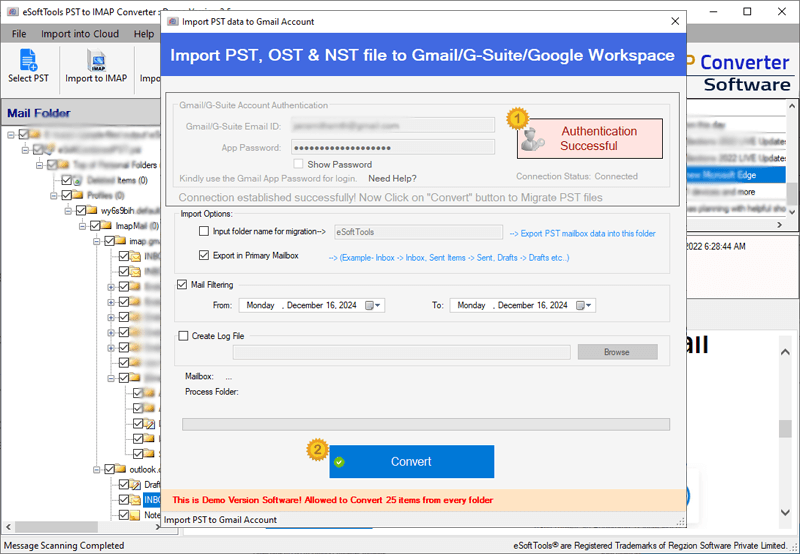
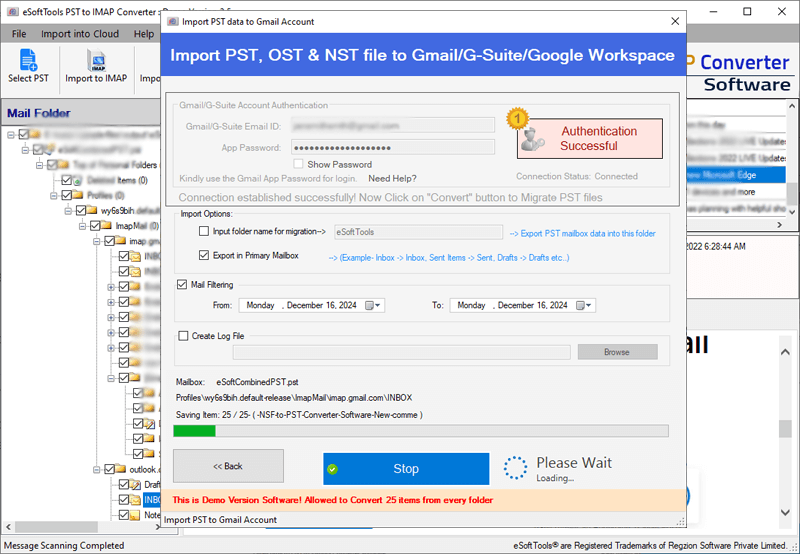
Click on Convert and begin the PST to Gmail or Google WorkSpace migration.
Steps to Migrate Outlook PST to Yahoo Mail Account
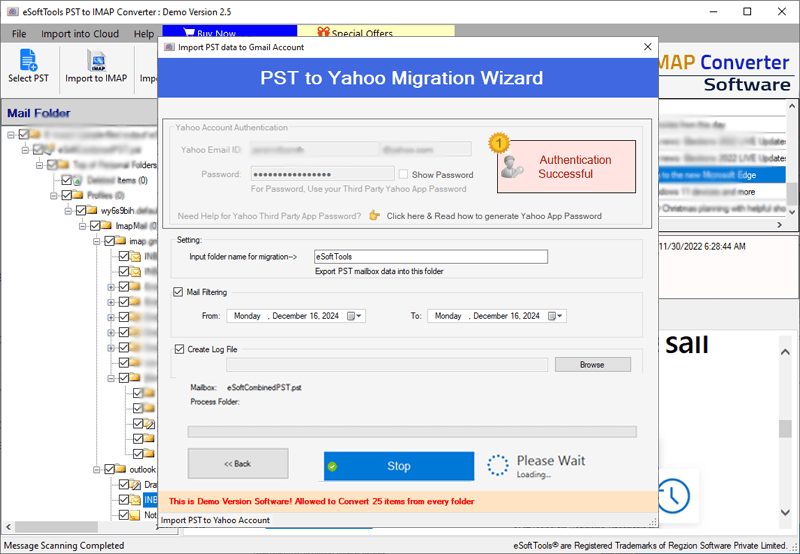
Press Import PST to Yahoo button.
Enter the Yahoo Mail account's email address and Yahoo third-party app password
Hit on the Authenticate Login button and login to your Yahoo Mail account.

Select an import option -
- Create New Folder and Import: - Choose this option and provide a new folder name to create in your Yahoo Mail account and store PST file data.
- Import in Primary Mailbox Folder - Choose this option to import PST file to Yahoo default mail folders.
Incremental Migration - Enable this option to instruct software to import incremental emails to Yahoo account.
Select Mail Filter and specify a date range for exporting emails of only required dates.
Choose a place to Log File.
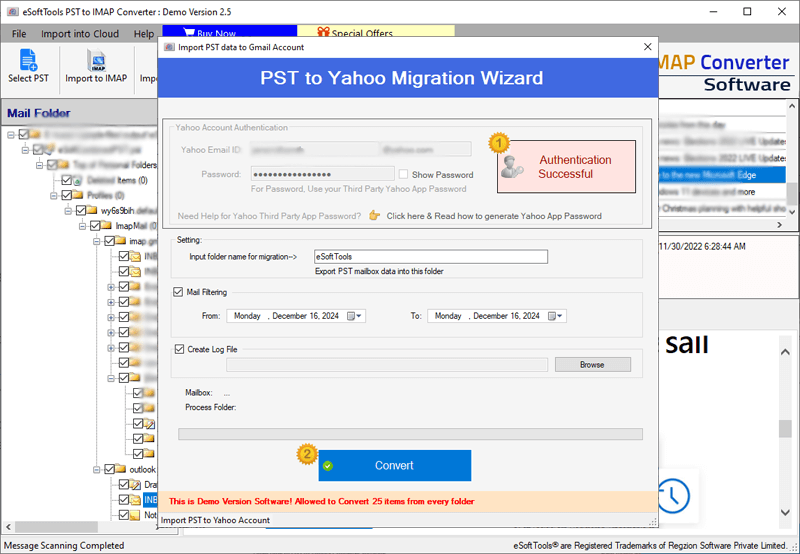
Click on Convert and start the process to migrate PST to Yahoo Mail account.