How to Migrate / Import OST to IMAP Account?
Using OST to IMAP Converter, Migrate OST Files to IMAP Accounts - Gmail/ Office365/ Yahoo Mail and more.
Migrate OST to IMAP via the fastest and multi-functioned eSoftTools OST to IMAP Converter Software. Export Outlook Mailbox from OST to any IMAP based webmail platform. Move emails, contact, calendar, and other items from OST file to Cloud mail services. Migrate OST to Gmail, Yahoo Mail, Office365, Outlook.com, and more.
Download and Launch eSoftTools OST to IMAP Converter Software on your windows-based computer.
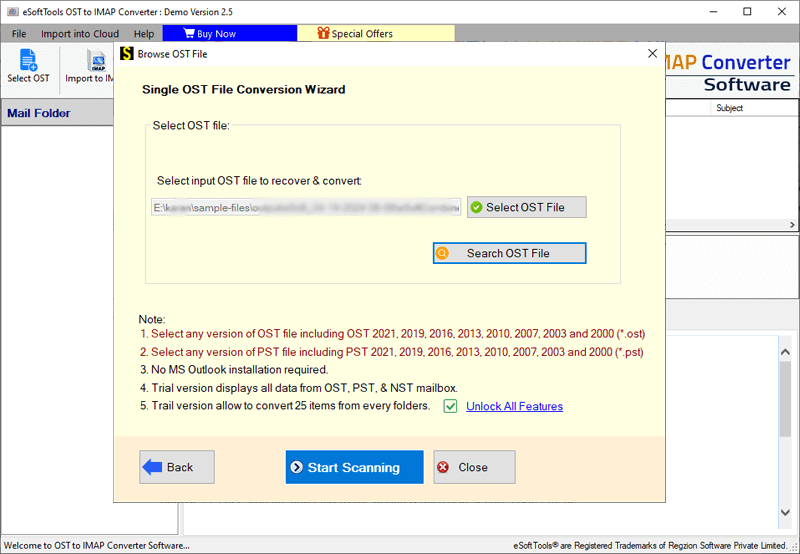
After launching the software, click the "Select OST" button.

- Choose the method of OST file adding/conversion: -
- Single OST file conversion- Migrate single OST file. (search or select one OST file at a time)
- Bulk OST file Conversion- Load several OST files within a single process.
Choose a conversion mode, for file adding and click on Next.

Add OST file (single or multiple) with your chosen conversion method, and press Start Scanning button.
Load data from imported OST file and get a preview of each of its internally available items.
Note: Select required folders from OST files from which you want to export items.

Follow these below given steps to export OST to IMAP, Gmail, Office365, or Yahoo Mail
Steps to Import Outlook OST to IMAP Mail Server
Select mailbox folders to export from OST file and press Import to IMAP button.
- Email Address
- Password
- Host name
- Port
Add details of your IMAP account: -

Apply other required settings and options: -
- Mail Filtering: - Select a date range whose emails you want to export from the OST file.
- Input Folder name for migration: - Create a new folder in your IMAP account to store the imported OST file data.
- Import in Primary Mailbox Folder: - Select this option import OST file's data items to Primary mailbox of IMAP account.
- Create Log File: - Select this option to create a log file and store it at the desired location on your hard drive.
Lastly, press Convert button to begin the process to migrate OST to IMAP Account.

Steps to Migrate Outlook OST to Office365 Account
Choose required mailbox folders from OST file and click on Import to Office365.
Insert your Office365 account's email address in new opened screen.
- "Export to Primary mailbox"
- "Input New Folder name for migration"
- "Export in -> Inplace Archive Folder"
Choose an input option: -
Click on "Mail filter" option to export emails of only selected date range from OST file.
Select log file option and choose the location where you want to store this newly generated log file.
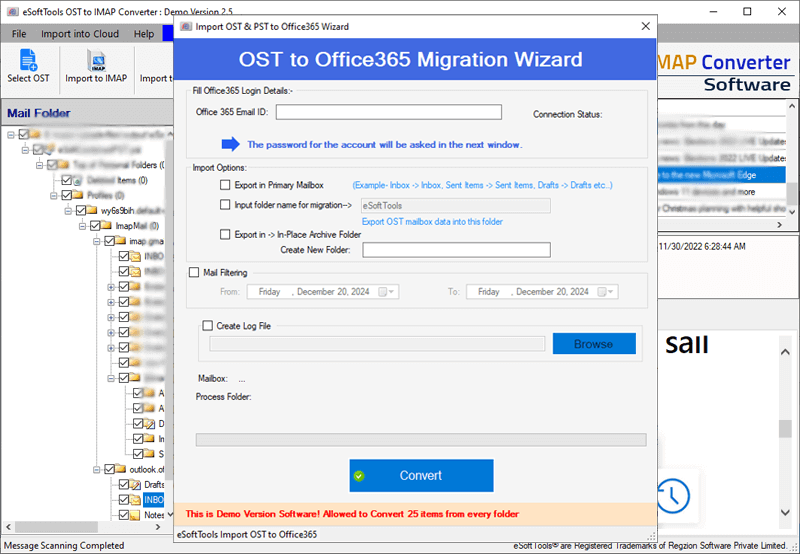
In the last step, hit on Convert to start OST to Office365 Migration.

Import OST to Gmail or Google Workspace (Bussiness)
Choose needed folder from OST file for export process and click on Import OST to Gmail/Google Workspace button.
Add Gmail or Google Workspace account login details - email address and Google third-party app password
Press Authenticate Login button and sign in with your account.
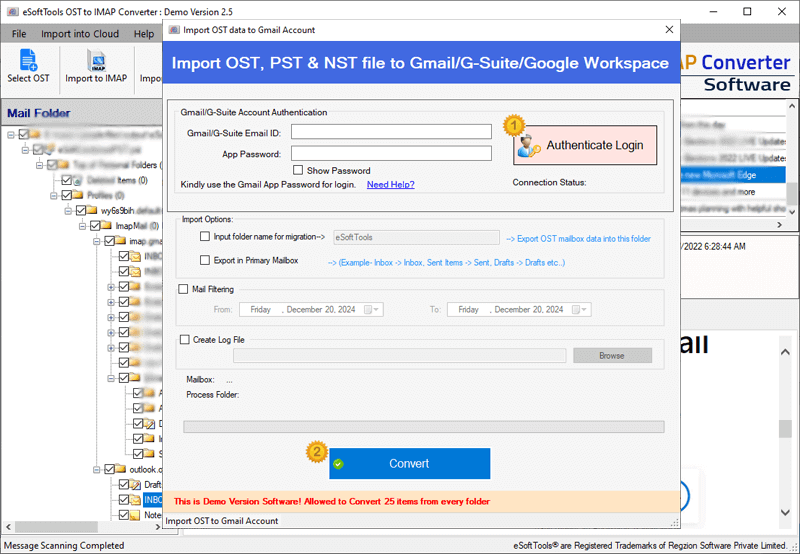
Make selection of import option: -
- Import folder name for migration
- Export in Primary Mailbox
Use Mail Filter function for exporting emails of only needed dates.
Select Create Log File option and specify a place to save log file.
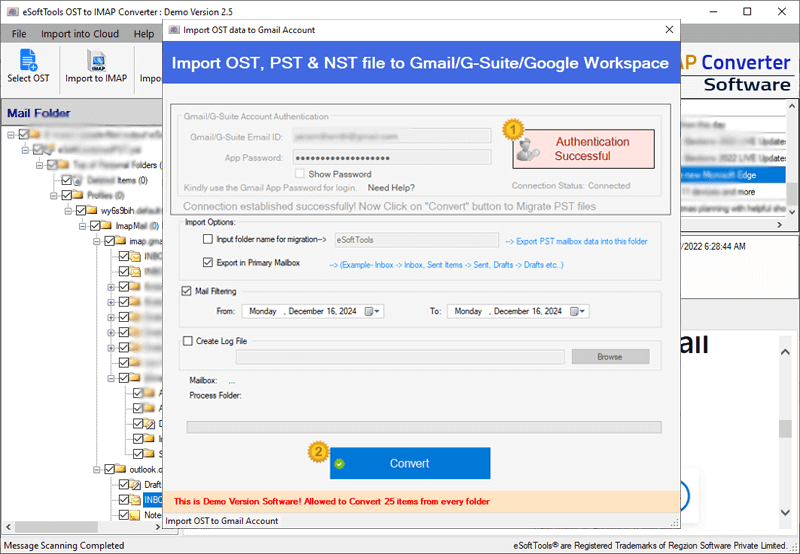
To start OST to Gmail or Google Workspace migration click on Convert.
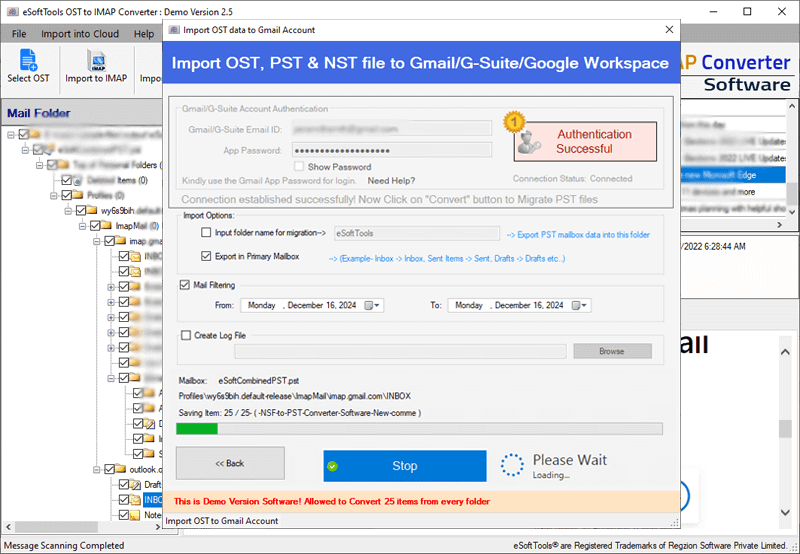
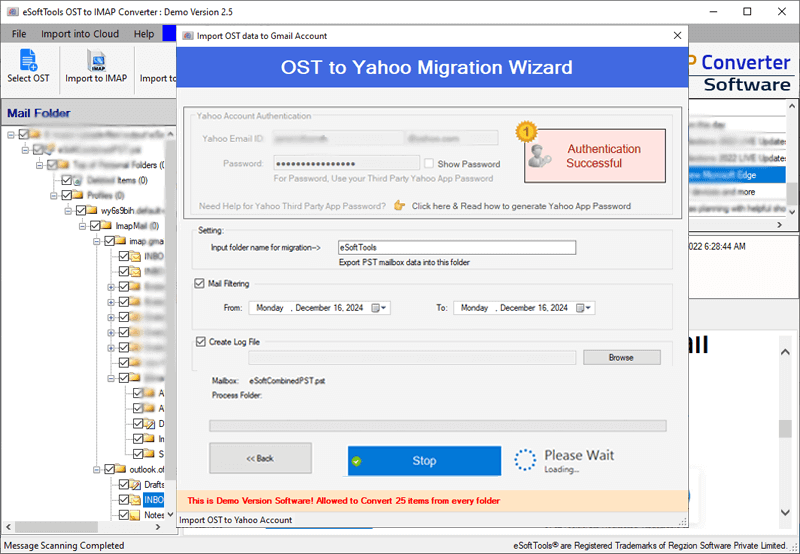
Simple Steps to Migrate Outlook OST to Yahoo Mail
Choose required mailbox folders from OST file and click on the Import OST to Yahoo button from top menu bar.
Add your Yahoo Mail account email address and Yahoo third-party app password
Press Authenticate Login button and connect to your Yahoo Mail account.
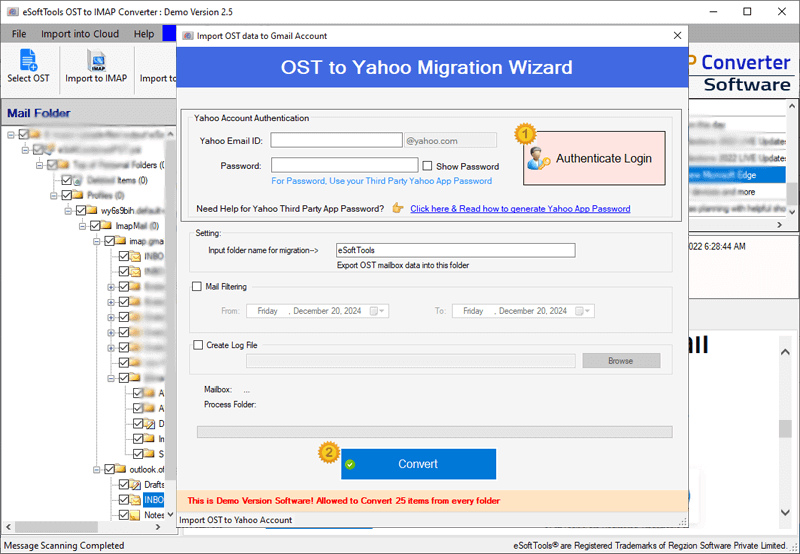
Choose import option: -
- Import folder name for migration: - Create a new folder in Yahoo Mail account to store OST file's imported data.
Choose Mail Filter option and specify the date range of which you want export emails from OST files.
Select a location from your drive to store Log File.
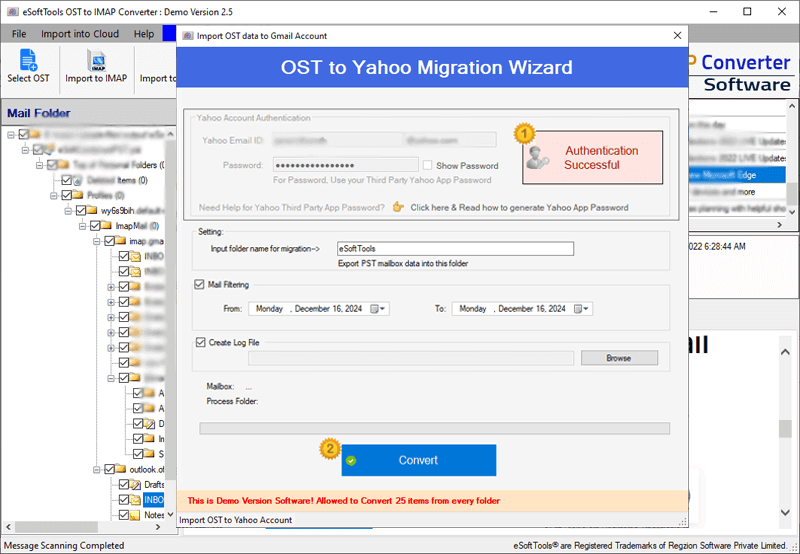
Finally, press the Convert button to start OST to Yahoo Mail Migration.