How to Convert / Export OST to NSF files?
Using OST to NSF Converter software Convert Outlook OST to NSF files for HCL Notes.
Download this eSoftTools OST to NSF Converter Software for windows systems. Use this fastest and effort-free solution to convert Outlook OST to NSF files. Export Outlook Mailbox from OST to NSF database with emails, contacts, calendar, and other items. Convert OST to NSF and get the ability to import it in any version of HCL Notes, IBM Notes or Lotus Notes email client application.
Download & Run this eSoftTools OST to NSF Converter Software to your windows machine.
From the first screen, press the "Select OST" button.

- Select the Mode of OST file Conversion: -
- Single OST file conversion- Search or select one OST file at a time.
- Bulk OST file Conversion- Add multiple OST files at one time.
Choose the conversion mode, and click on the Next button.

Add and import OST files with your chosen mode of file adding and conversion.
After adding the file, press Start Scanning button.

Load Outlook mailbox items from your chosen OST file and get a preview mailbox items that available in OST files.
View Outlook items and choosen required folders from OST files for exporting them.
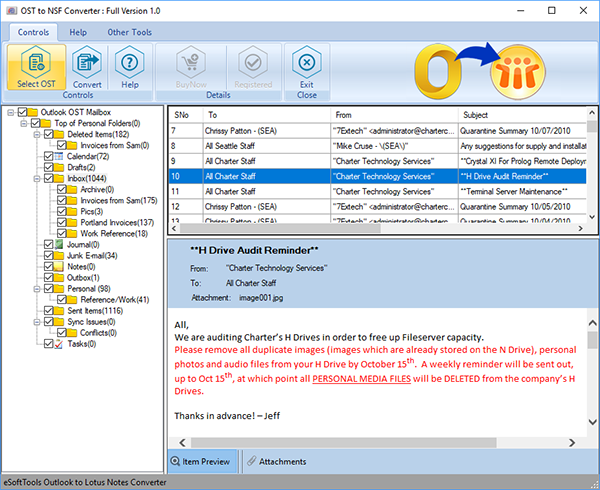
Apply the given steps to convert OST to NSF and migrate OST to Cloud
Convert Outlook OST to NSF (for HCL / IBM/ Lotus Notes) or Outlook PST files.
Choose needed folders from OST files and press Convert OST button from the toolbar.
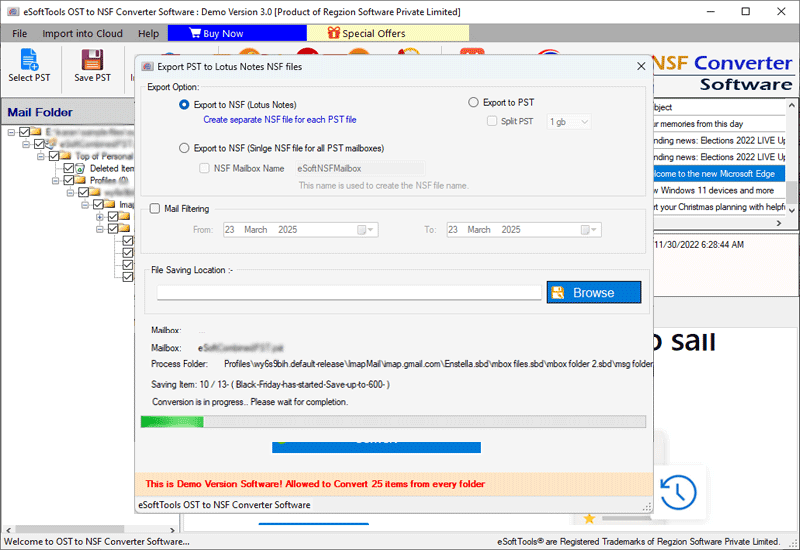
Now select an export option from next opened screen: -
- Export to NSF (Create Separate NSF file for each PST file): - Choose this option and create individual NSF file for each PST file with complete folder hierarchy.
- Export to NSF (Single NSF file for all PST Mailboxes)- Throug this option, users can convert/merge multiple PST files into Single NSF file with all data.
- Export to PST: - Transfer Data of OST files to Outlook PST file.
(Also, get split option to break lareg PST in smaller parts.)

Additional settings for conversion process: -
- Mail filter => Select this option and choose date of which you want to export emails from OST files specifically.
- Saving Location => Select the place from your drive where you want to store the file that will generate after OST to NSF conversion process.
In the last step, press Convert to start OST to NSF file conversion to export Outlook profile data to HCL Notes.
Migrate OST to Gmail, Office365, Yahoo Mail, Outlook.com, and IMAP Account
Select folders from OST files and click on "Import into Cloud" button then choose a cloud importing option.
- Import OST to Office365.
- Import OST to Gmail / G-suite.
- Import OST to Yahoo Mail.
- Import OST to Outlook.com.
- Import OST to IMAP Account.

Steps to Transfer Mailbox from OST to Office365 account
Choose the option Import OST to Office365 and add your Office365 account's email address, then apply other settings those are required.
Select any one option "Export to Primary mailbox" or "Input New Folder name for migration"
In addition of this, select "Mail filter" for exporting emails of specific date and choose a place to store log file.

After all the required selections, press the Connect button and start the process to Migrate OST files data to Office365 account easily.

Easy Steps to Export OST to Gmail or G-suite account
Select the Import OST to Gmail/G-Suite option.
Add Gmail or Google workspace account's email address and Google third-party app login password and press Authenticate Login button.

Connect the Gmail and apply other functions of the software: -
- Filter Emails: - Select dates of emails those to want to export from Outlook OST Mailbox.
- Folder Name: - Create a new folder with a custom name to your Gmail account where you can store the imported OST file's data.
Click on Convert and begin the process to import OST mailbox to Gmail or Google WorkSpace account.

Perform Outlook OST to Yahoo Mail Migration
Select Import OST to Yahoo Mail from the cloud import options.
Enyter the Email address of your Yahoo Account and Third-Party App Password and click on Authenticate login.
Select and apply other options like- Mail Filter, Input Folder and Create Log File

Lastly, click on Convert and begin the OST to Yahoo Mail import process.

Steps to Import OST to Outlook.com/Hotmail.com account
From cloud import options list, select Import OST to Outlook.com option.
Add your Outlook.com account's Email address and Password.
Use Mail Filter, Input Folder Name options and choose the place to store log file.

In the last step, hit on the Convert button and start importing OST mailbox to Outlook.com/Hotmail profiles.

Steps to Import OST to IMAP Mail Server account
Select the cloud import option Import OST to IMAP and enter IMAP account email address, password, host name, and Port.

Select and use the options : -
- Mail Filtering: - Select dates of emails those you want to export from OST files.
- Input Folder name for migration: - Add a folder with custom name to your IMAP Account Server to save importing OST mailbox data.
- Create Log File: - Choose the place place to save the log files.
Press Convert button and begin the OST to IMAP email migrtaion.
