How to Convert MSG to PST files?
With few simple clicks, convert MSG to PST file in bulk using MSG to PST Converter
Download and use eSoftTools MSG to PST Converter Software", for converting MSG to PST files in simple clicks. Complete the conversion of bulk MSG file to Outlook PST within a very less time without trouble. Automatically perform bulk MSG to PST file conversion and get instant results with 0% data loss chances.
Step-1) Download eSoftTools MSG to Gmail Converter Software and install it on your Windows PC.
Run the software and click the Select MSG File/Folder button.

- Select MSG Folder:- add a folder containing multiple files at once.
- Select MSG File:- Add MSG files from specific location (single or multiple).
Add MSG files/folders and click on Next to load them into the software.

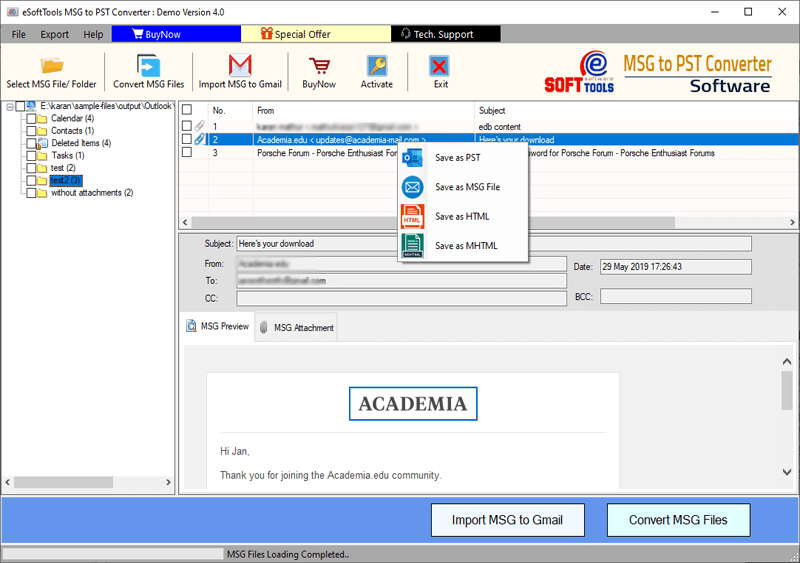
Step-3) View Outlook items from MSG files- emails, contacts, calendars, tasks, notes, journal, and other items through the software.

Step-4) Right-click MSG file's item to save each item separately in PST or other conversion format(EML, EMLX, & HTML).
Note:- To Convert MSG files in bulk apply the steps shown below.
Choose required MSG folders/files & follow these given steps to Convert MSG to PST files in batch mode: -

- Export in PST: - From available file format option select this option to convert MSG to PST file.
- Apply other setings: -
- PST File Name: - Add a custom file name to resultant PST
- Store Name: - Input a store name inside PST file
- Password: - Encrypt PST file with password.
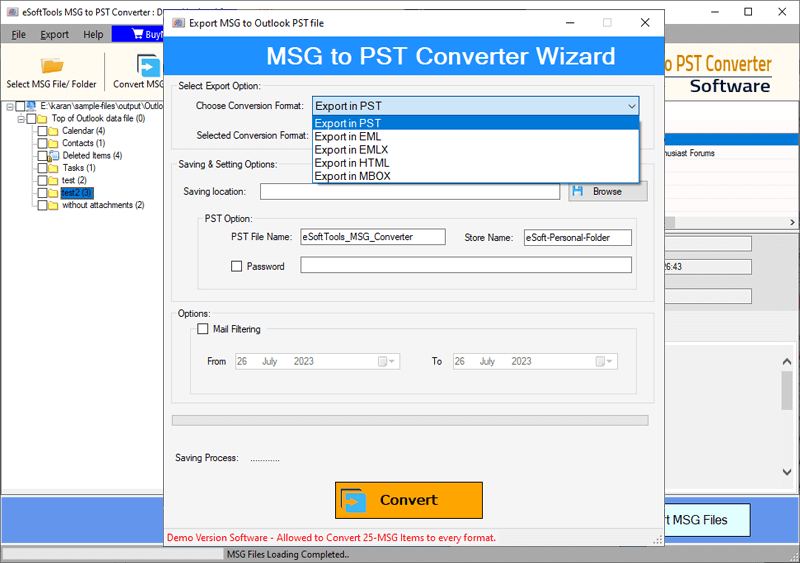
- Export in EML:- Preserve each MSG file items separately in EML files.
- Export in EMLX:- Save each MSG file item in separate Apple mail compatible EMLX files.
- Export in HTML:- Export and save Outlook items from MSG to HTML files for web browsers.
- Export in MBOX:- Export MSG folder to MBOX files with emails.
Save emails from all selected MSG folders in a single MBOX file or save each MSG folder to separate MBOX file.
Other available conversion formats
- Saving Location: - Choose a location for saving the newly generated files.
- Mail Filter by date: - Choose dates of emails to export them from MSG files specifically.
- Naming Convention: - Save resultant email files with custom name defined by different combinations of email attributes- From, To, and Subject. (Avialable only with EML, EMLX, and HTML)

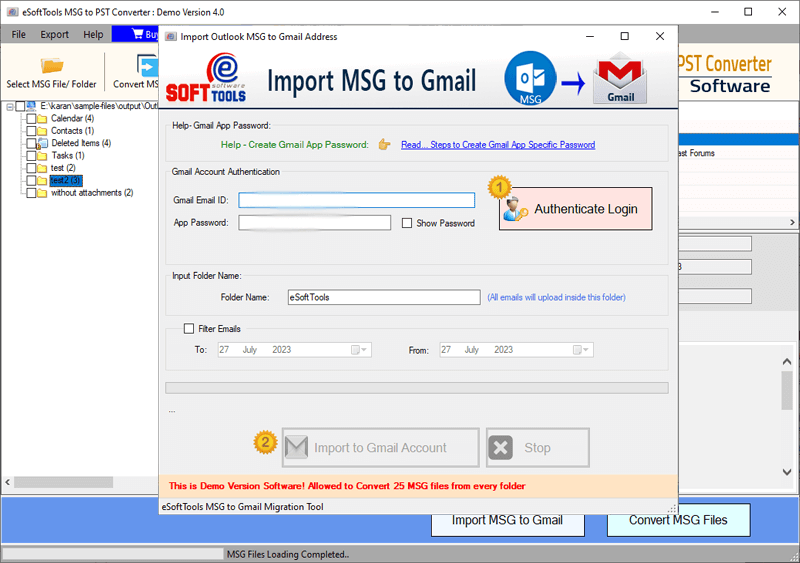
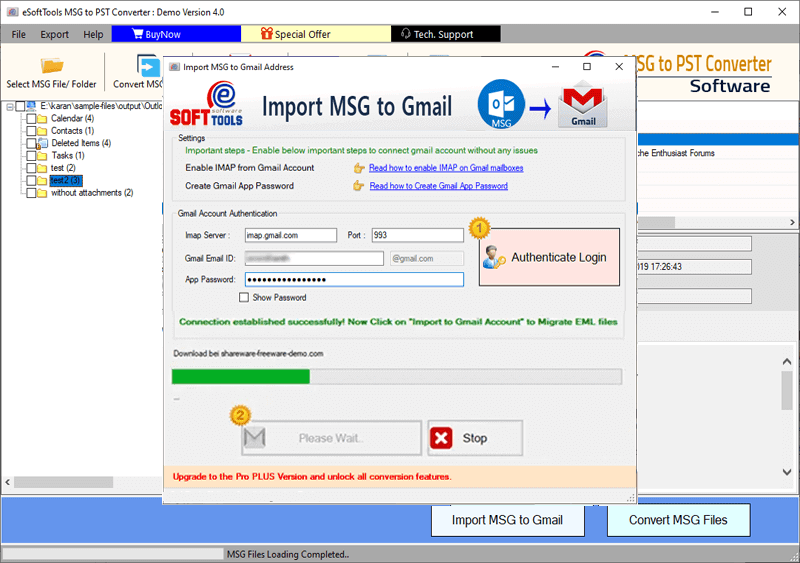
- After getting a connection to Gmail account, apply these settings: -
- Input Folder: - create a new folder with custom name on your Gmail account to preserve data exported from MSG files.
- Mail Filter: - Specify email dates export emails of only chosen dates from MSG files.