How to Migrate/Convert MSG to IMAP Webmail?
With a quick & easy process migrate MSG files to IMAP based web emailing platforms.
With the assistance of eSoftTools MSG to IMAP Migrator software easily import MSG files to IMAP accounts. Transfer emails, contact, calendar, and other items from MSG files to IMAP based web emailing services. Export MSG to Email accounts hosted on Hostinger, HostMonster, AOL, Yandex Mail, DreamHost, BlueHost, Yahoo Mail, Gmail, Office365 and more.
Download eSoftTools MSG to IMAP Migrator Software and launch it on your windows computer.
Click the "Select MSG" button from first screen.

- Select a mode of importing MSG into the software: -
- Select MSG Folder- Insert a folder holding MSG files (including -subfolders).
- Select MSG Files- Open a folder and add single or multiple MSG files from it.
Choose MSG file's path and press the Next button.

Load the inserted MSG files into the software and one by one open MSG files.
Open MSG and inside the software and view Outlook items from them.

Make selection of MSG folder/files from available list and apply below given steps to Migrate MSG files to IMAP
Steps to Migrate MSG files to IMAP Webmail
Choose the needed MSG files folders, and press the MSG to IMAP Account button from menu bar.

- Email Address: - Email address of your IMAP account
- Password: - Enter Pasword associated with your account
- Hostname: - imap.yourhostname.com
(change it with your IMAP hostname) - Port: - 993
Fill the requird details IMAP account details: -

- Input Folder name for Migration: - Add a new folder with custom name to store the imported MSG files data.
- Filter Email: - Select start and end date of email to migrate items of selected date range.
Apply other needed settings: -
Finally, click on Convert to begin the MSG to IMAP Migration.

Upload MSG to Office365 Account
Select MSG files or folders, and hit on MSG to Office365 button.
Enter your Office365 account's email address.
Select and use the Folder Name input and mail filtering options.
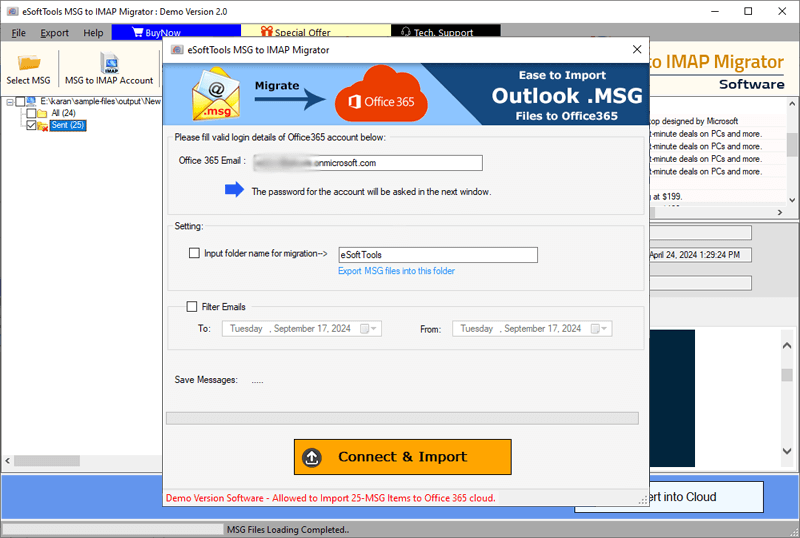
Press the Connect & Import button and begin the MSG to Office365 migration process.

Import MSG files to Gmail/ Google Workspace Account
Make selection of MSG folder or files and hit the MSG to Gmail/Google Workspace button.
Add your Gmail/G-suite Email Address and Google App Password and click the Authenticate Login button.
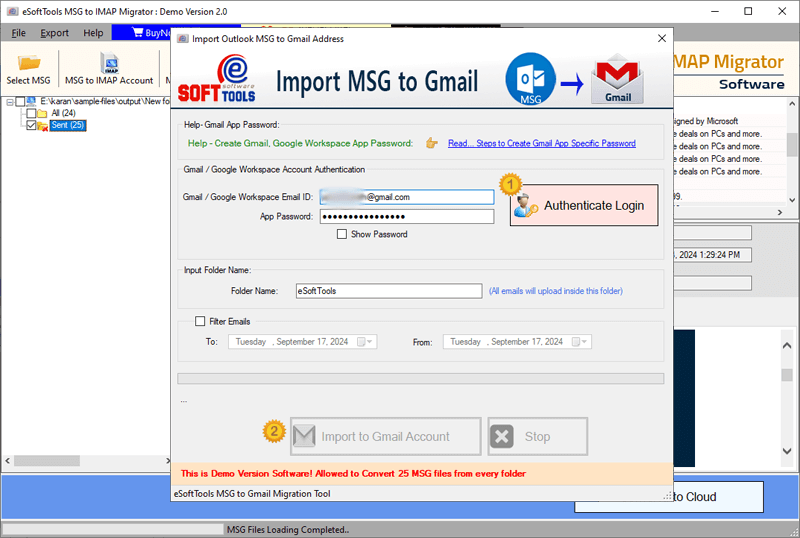
Apply Mail filter and Folder input settings.
Lastly, hit on Import to Gmail account and execute the MSG to Gmail import process.

Migrate MSG files to Yahoo Mail
Choose MSG Files & Folders and from the menu bar click on MSG to Yahoo button.
Input the Email Address and Third-Party App Password of Yahoo account and press the Authenticate Login button.
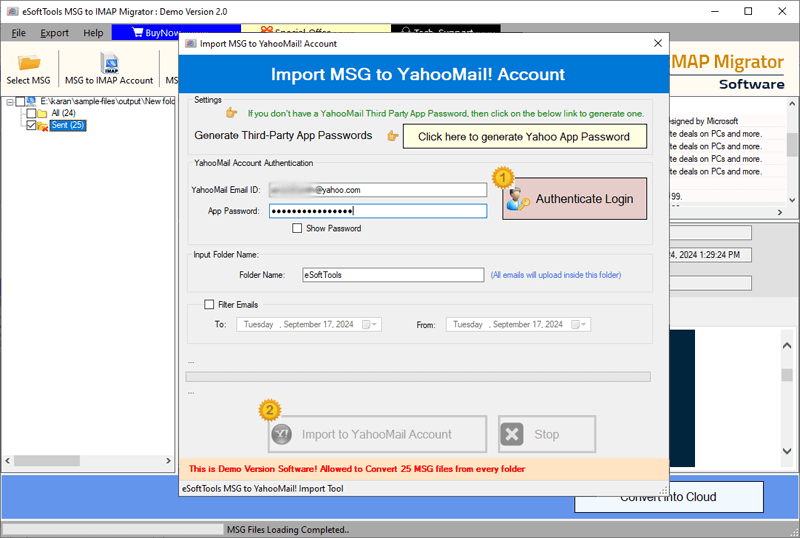
Use mail filter, folder input options and press Import to Yahoo Account button and run the software for MSG to Yahoo Mail Import process.
