How to Split & Merge MBOX files via MBOX Splitter/Merger?
Split MBOX files into smaller parts and merge two or more MBOX files into a single file with all emails & attachments.
Download and use eSoftTools MBOX Splitter and Merger Software, software to break MBOX files into several small parts and merging two or more MBOX files into a single file. Split and Merge MBOX files with different mode and get the instant results without errors. At one time, merge and split multiple MBOX files without losing a single email or other information.
Step-1) Download and launch eSoftTools MBOX Splitter & Merger Software on your windows PC.
Press the Add File/Folder button from first screen of the software.
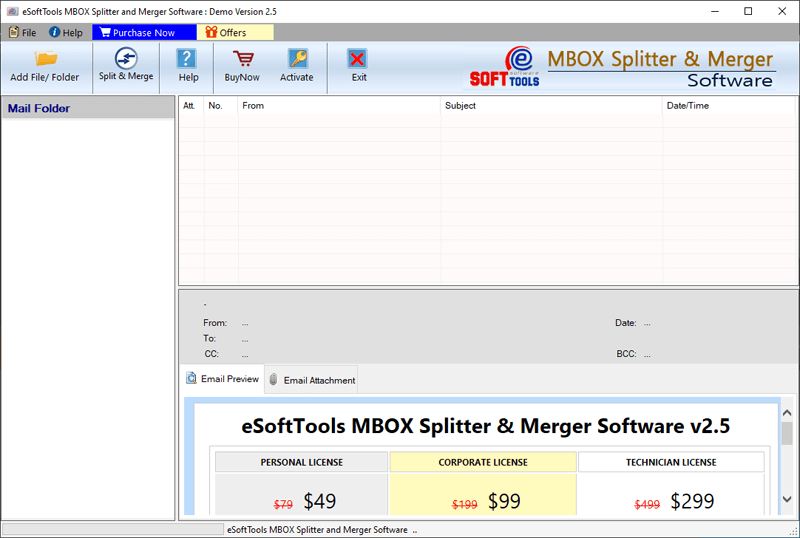
- Select MBOX file: - Manually add a single MBOX file at a time
- Select MBOX Folder: - Add complete folder having multiple MBOX files.
- Auto Load Thunderbird Profile: - In a single click load all Thunderbird profile mail folders.
Add required MBOX files and press the Next button.

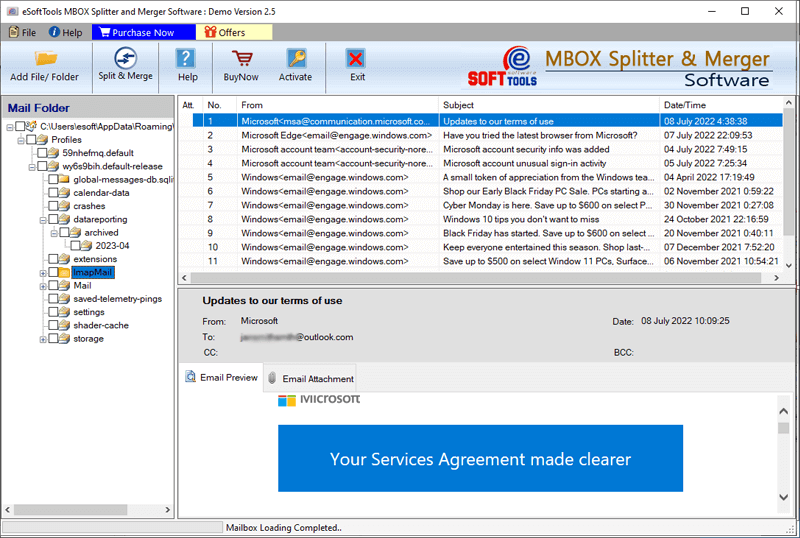
After MBOX mail folder selection, apply the steps shown below for MBOX file splitting and merging: -

- Define size: - Input the size of in which you want to split MBOX files.
- Filter Mail: - Select start and end date and split MBOX files with emails of only chosen dates.
After all selections, click the Next button.

Date filter: - Choose a "Start" and "End" and split MBOX files with emails of only specified dates.
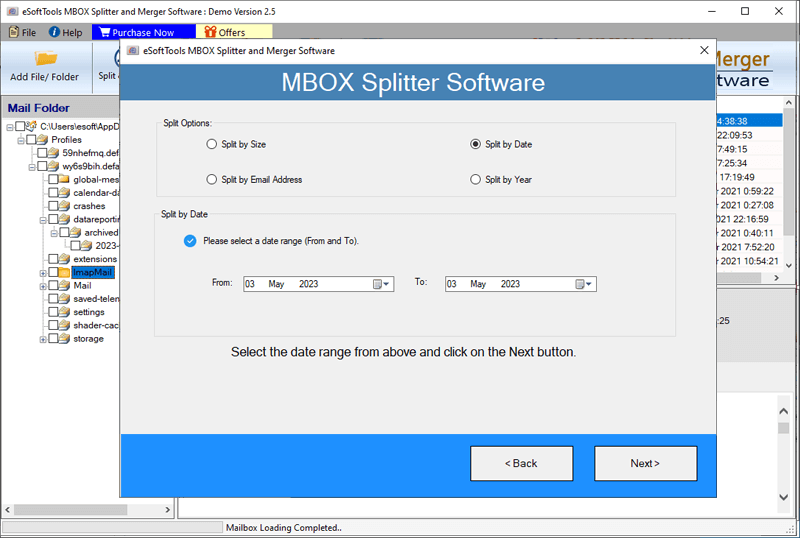
- Select Year: - Make selection of a "Start" and "End" year to split MBOX with emails of specified years.
- Custom Year: - Input start and end year in "From" and "To" field and split MBOX files with emails of selected years.

Note: - Also, split MBOX files by email subject. Enter subject of email and split MBOX files with emails of specified subject.
Filter Emails: - Select mail filter option, choose a start and end date to split MBOX files with emails of chosen dates.

Step-6) Select a location from local drive for saving resultant MBOX files after splitting.
Lastly, press the Split button and start the MBOX file splitting process.

Note: - Use this option to merge MBOX files with all their inner email items without filters.
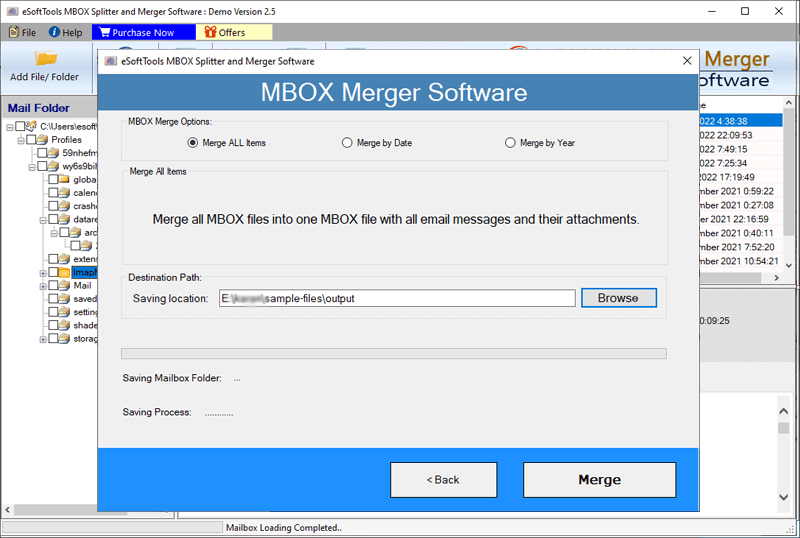
Date filter: - Select a "From" and "To" to MBOX files with emails of only specified dates.
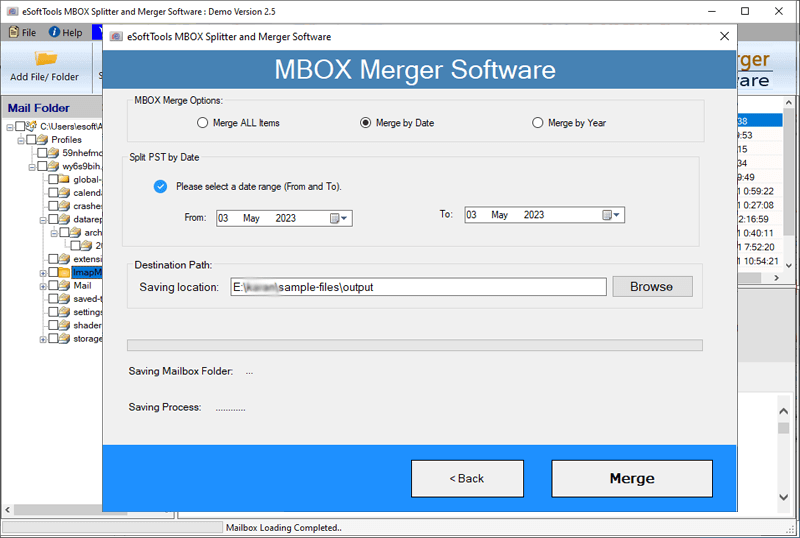
- Select Year: - Choose of a "Start" and "End" year to merge MBOX with emails of chosen years.
- Custom Year: - Enter start and end year in "From" and "To" field for merging MBOX files with emails of selected years.
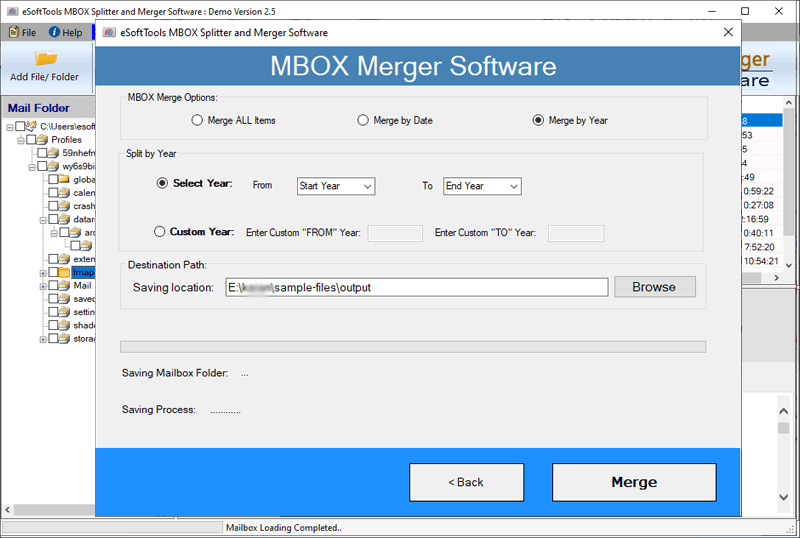
Step-6) Choose a saving location from local drive to preserve resultant MBOX files after merging.
Lastly, press the Merge button and start Merging MBOX files.
