How to Import MSG to Office365?
Perfect MSG to Office365 Migration Toolkit to quickly import MSG to Office365 account
Download eSoftTools MSG to Gmail Converter Software", read , a quick option to export an infinite number of MSG files to Gmail/Google Workspace. Read MSG files and instantly Outlook items from it to Gmail account. Transfer Outlook items from MSG files to Office365 without losing any data. Migrate MSG files with message content, in their original format.
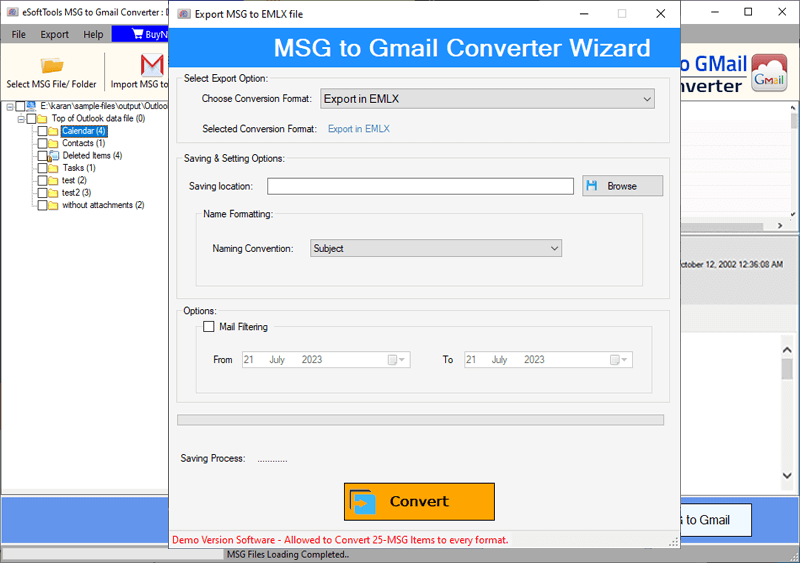
Step-1) Download and install eSoftTools MSG to Gmail Converter Software your windows based computer.
Launch the software and press the Select MSG File/Folder button.

- Select MSG Folder:- Choose folder from your drive having sub-folders and MSG files.
- Select MSG File:- Add single or multiple MSG files manually from your drive.
After folder and MSG file adding process and click on Next button.

Step-3) from added MSG files folders and view Outlok items emails, contacts, calendars, tasks, notes, journal, and other items.

Step-4) Right-click on each MSG file item and save each item separately in PST, HTML, EML, and EMLX file format.
Note:- For MSG file conversion or migration to Gmail follow the below given steps.
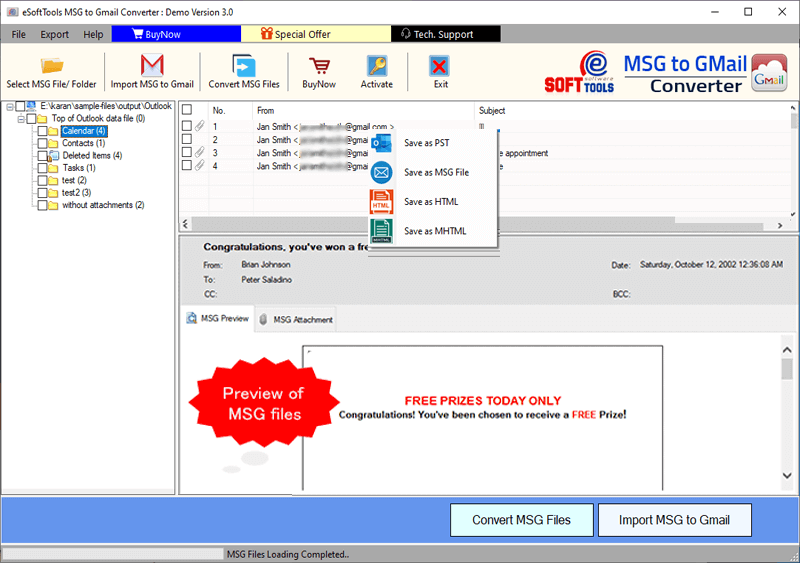
Make the selection of required MSG folders/files & apply the below given steps for MSG file conversion and migration:-

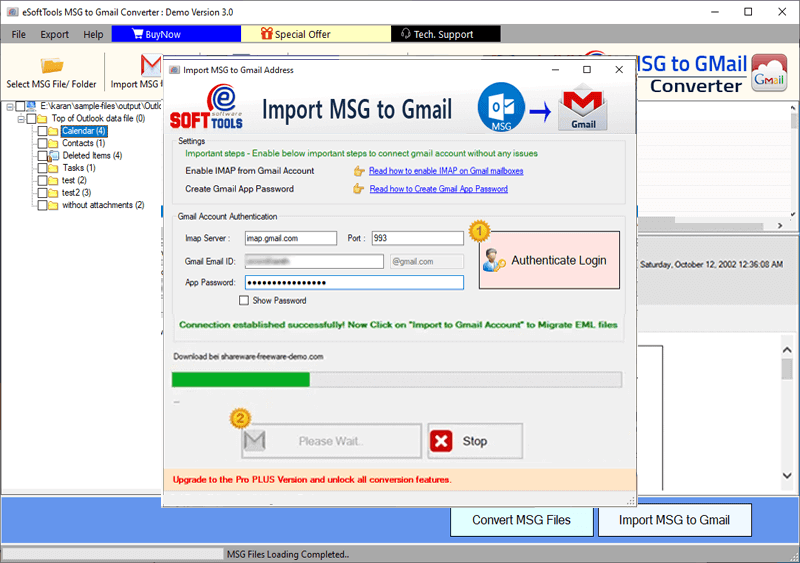
- After connection to Gmail account, apply other needed settings: -
- Input Folder: - create a new folder with custom name in Gmail account to save MSG file data.
- Mail Filter: - Use mail filter function and specify email dates for exporting emails of chosen dates from MSG files.
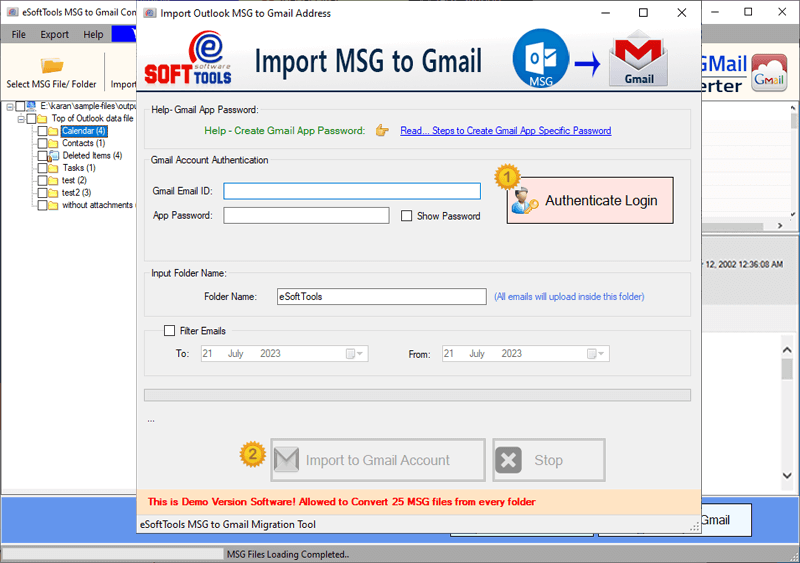
- Export in PST: - From selected MSG files or folders export data to a single Outlook PST file.
Note: - Get ability to add File Name, store name and password to resultant PST files.
- Export in EML:- preserve MSG file's emails in separate EML files.
- Export in EMLX:- Save Outlook MSG file emails to Apple Mail EMLX files (save each MSG file email to separate EMLX file.
- Export in HTML:- Save MSG file items to HTML files for opening with web browsers.
- Export in MBOX:- Move slected MSG folders to MBOX files.
Get the power to save all MSG file's emails to single MBOX file or save each MSG folder to separate MBOX file.
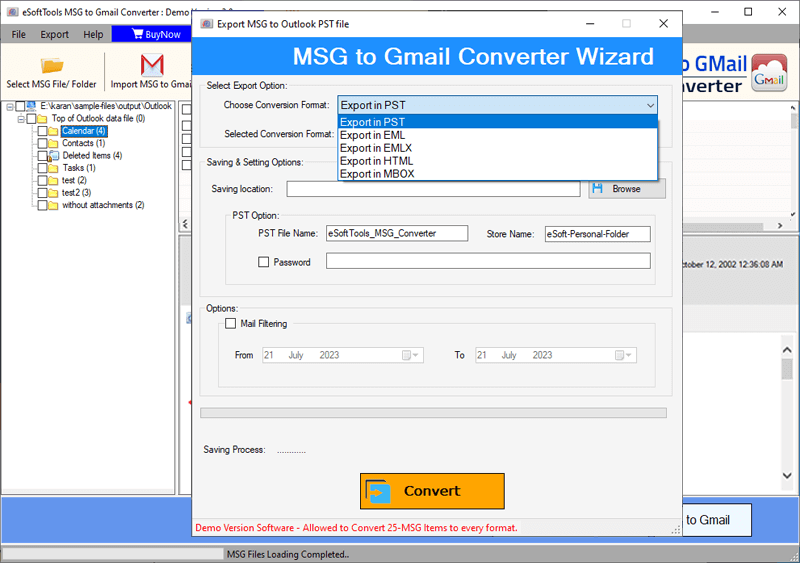
- Mail Filter by date: - Specify dates of emails and export emails of specified dates from MSG files.
- Naming Convention: - Get resultant files with custom name with different combinations of email attributes From, To, and Subject.(Avialable with EML, EMLX, and HTML)
- Saving Location: - Select a location from your local drive to preserve MBOX files.