How to Extract Attachments & Email Address from MBOX files?
With simple clicks Extract Infinite numbers of Attachments & Email Addresses from MBOX file's emails.
Extract Unlimited attachments & email address from MBOX files securely and instantly using "eSoftTools MBOX Attachment Extractor Software". Extart any sized and any type of attachments from a single or several MBOX files at one time. With ease download entire or specific type of attachments from MBOX file while extraction.
From the first screen, press "Add File/Folder" button

- Select MBOX File:- Add a single MBOX file in the software manually
- Select MBOX Folder:- Choose and add a folder containing multiple MBOX files
- Auto-Load Thunderbird Profile:- Automatically load all Thunderbird mail stores files/folders from its default profile storing location.
After selecting and adding MBOX file/folders, hit the "Next" button.


From preview panel choose needed MBOX folders and then follow the below mentioned steps to extract attachments & email address from MBOX files:-

- Extract Attachment Folder-Wise:- Create seperate folder for each MBOX folder and Save Extracted attachments to folder-wize
- Extract Attachment Message-Wise:- Create separate folder for each email and preserve extracted attachments message-wise
Choose any one of these option and apply other required settings shown below.
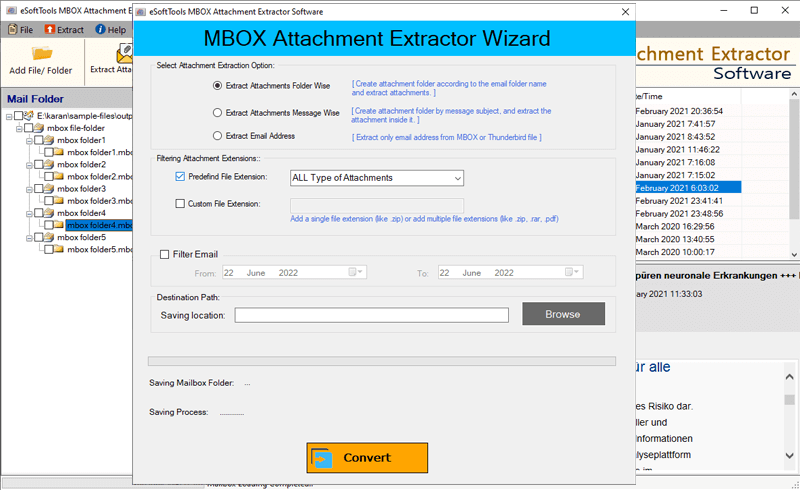
- Attachment filter:- Extract attachments of some specific or required file types/extensions
- Predefined File Extension:- From a list of multiple file extensions choose a needed file type for attachment extraction
- Custom File Extension:- Enter file extensions of attachments that you want to extract from emails of MBOX files.
- Mail filter:- Choose a start and end date to extract attachments from MBOX emails of only needed dates.
- Saving Location:- Select location from local drive, where you want to save extracted attachments.
Select other required options-


Few other settings are required to apply-
- Select Email Filter Criteria:- Choose a email address field from the options- All, TO, BCC, CC.
- Filter Mail:- Select Start and End Date of emails to extract email addressess from emails of selected dates.
Include Display Name with Email Address - Select this option if you want to extract email addresses with display names.


