How to Convert EML to CSV (Comma Separated Values)?
Using EML to CSV Converter software, Convert EML to CSV and easily save EML emails to CSV files.
Download eSoftTools EML to CSV Converter Software and use it to convert EML files to Comma Separated Values. Save email items in CSV files with information such as subject, date, sender email address, recipient email address, message text, attachments, etc. Convert EML to CSV as well as several more options like- PST, MSG, EMLX, HTML, Office365, Gmail, etc.
Download eSoftTools EML to CSV Converter Software, install it to your Windows PC.
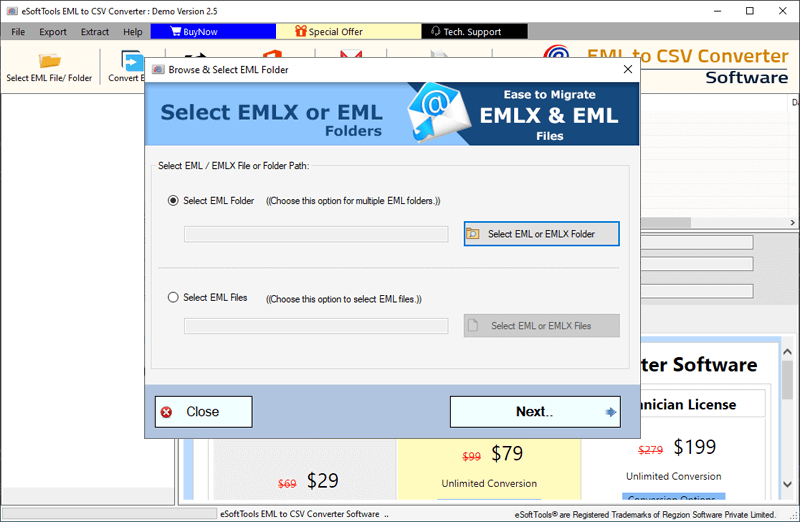
Run the software and click on "Select EML File/Folder" button.

- Select a method to add EML files for conversion: -
- Select EML Folder- For adding a folder containing EML files (including sub-folders).
- Select EML Files- For adding EML files (single or multiple) from a folder.
Choose the path from which you want to insert EML files and press Next button.
Load the inserted EML files/folders, get preview of EML Emails and make selection of required folders or items.
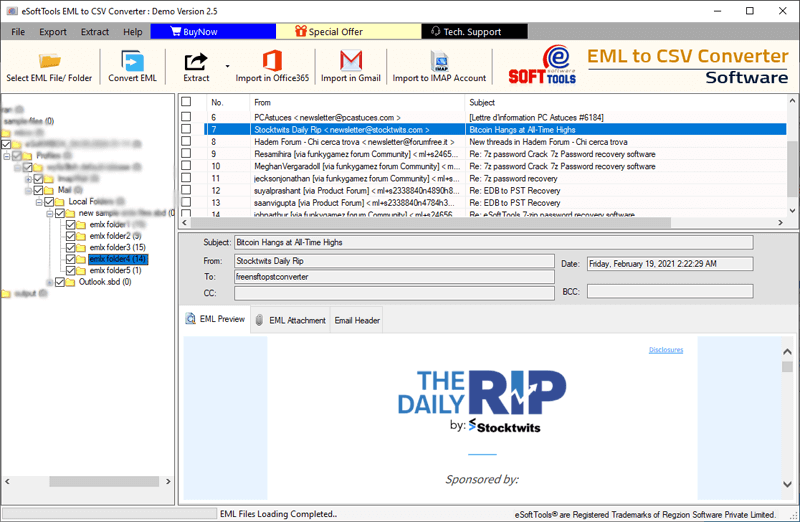
Choose needed EML folders/items & apply these below given steps for EML Email Conversion or Migration
Convert EML to CSV/ PST/ EMLX and HTML
After the EML Folder or items selection click on the Convert EML button and choose your a conversion format from the next screen: -
- Export to CSV (Excel File)
- Export to PST
- Export to MSG
- Export to EMLX
- Export to HTML

Apply relevent settings with chosen conversion option: -
- Mail filter => Filter emails from EML files based on Date, From(Sender's email address), and To(Recipient's email address).
- Save Attachment => Convert EML Email with attachment and store attachment in separate folders.
- Saving Location => Select a place from your local drive to store resulting files (Generated as the result of conversion).
- Naming Convention => When saving emails to an HTML, MSG, or EMLX file, use this function to assign a name format to the new files with 9 different available options.
Lastly, click on Convert and begin the process to convert EML to CSV, or other chosen file format.

Migrate EML to Gmail, Office365, and IMAP Account
Select needed EML files and folders and choose a cloud import option.
- Import in Office365.
- Import in Gmail.
- Import in IMAP Account.
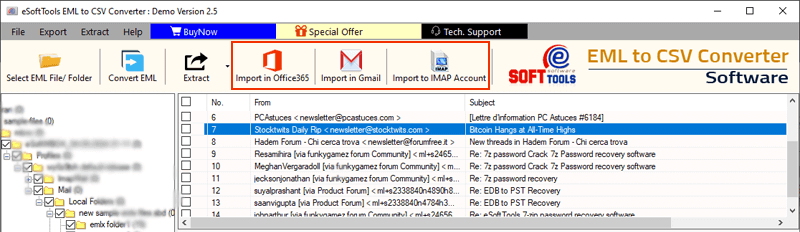
Steps to Migrate EML files to Office365 account
Click on Import in Office365 button and apply other settings .
Input email address of your Office365 account's and click on Connect.
Login with Office 365 account and make selection of required options-
- "Pick Folder Name for Import"
- "Input Folder name for migration"
- "Email Filter": - Date Filter, From (Sender's Email Address), and To (Recipient's Email Address).
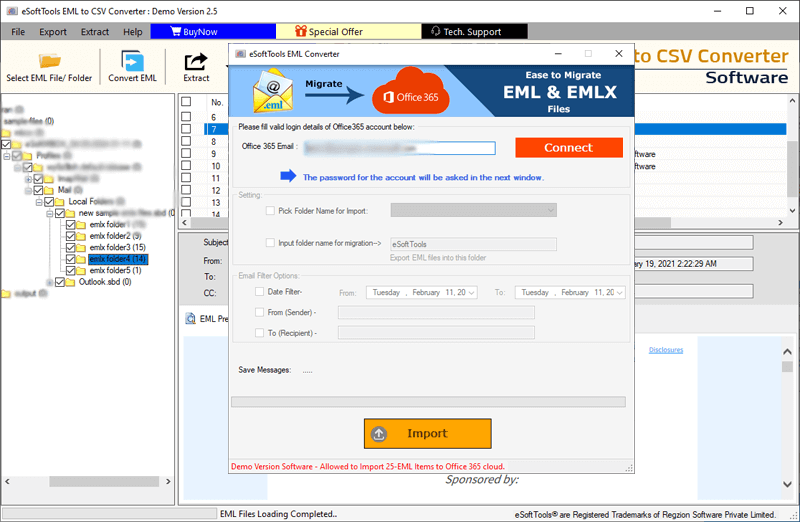
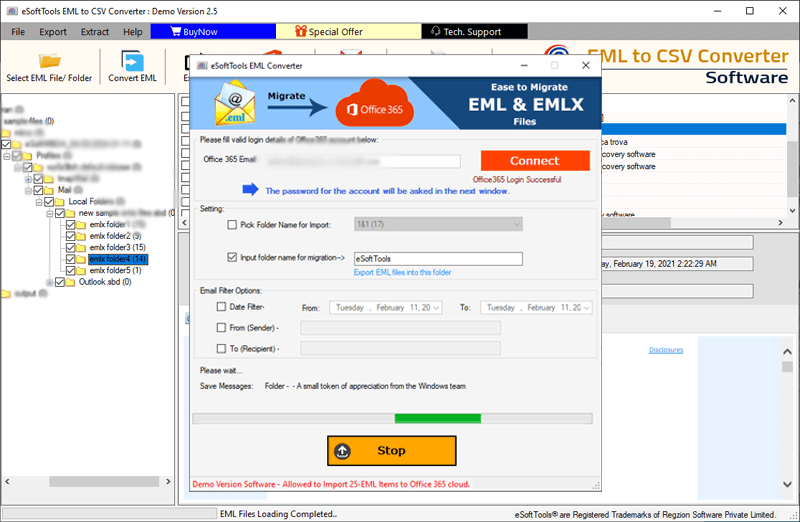
Press Import button and start EML to Office365 migration.
Easy Steps to Export EML Emails to Gmail Account
Click on Import in Gmail button from top menubar.
Input your Gmail Account's email address and App password.
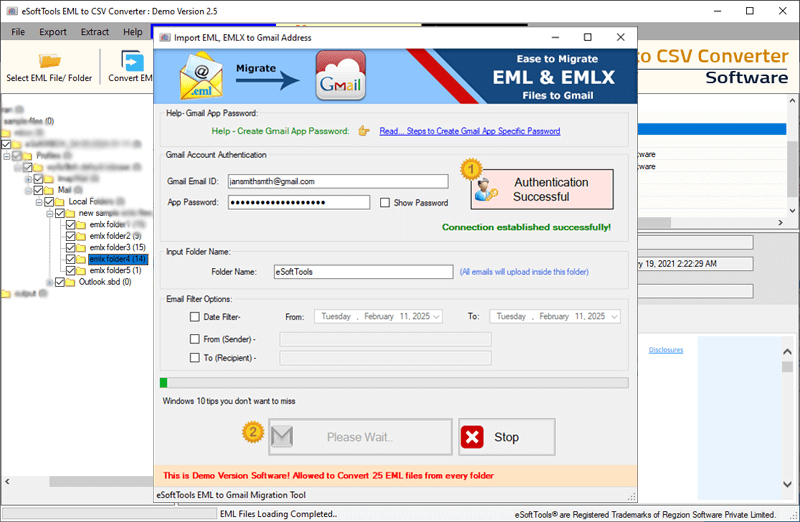
Hit on the Authenticate Login button to connect with Gmail/Google Workspace account.
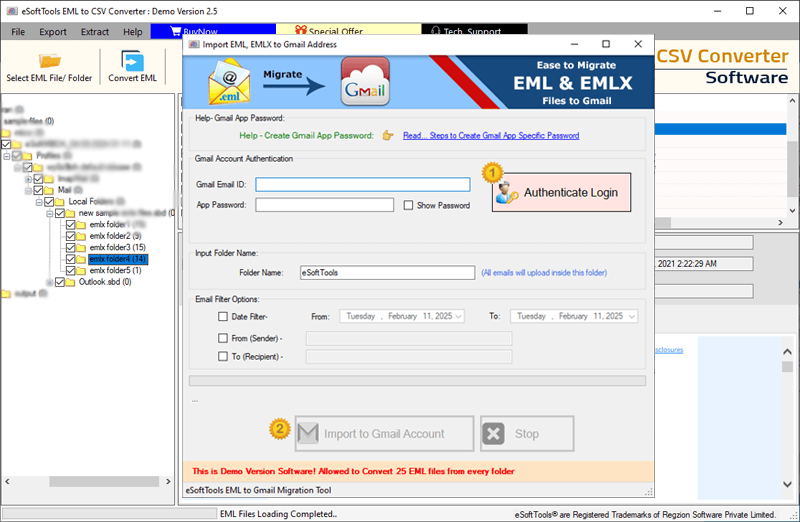
Apply other required settings: -
- Filter Emails: - For exporting specific emails Choose a email filter method: - Date, From or To.
- Folder Name: - Add a folder name in which you want to import EML emails.
CLick on the Import to Gmail account button to start importing EML emails to Gmail account.
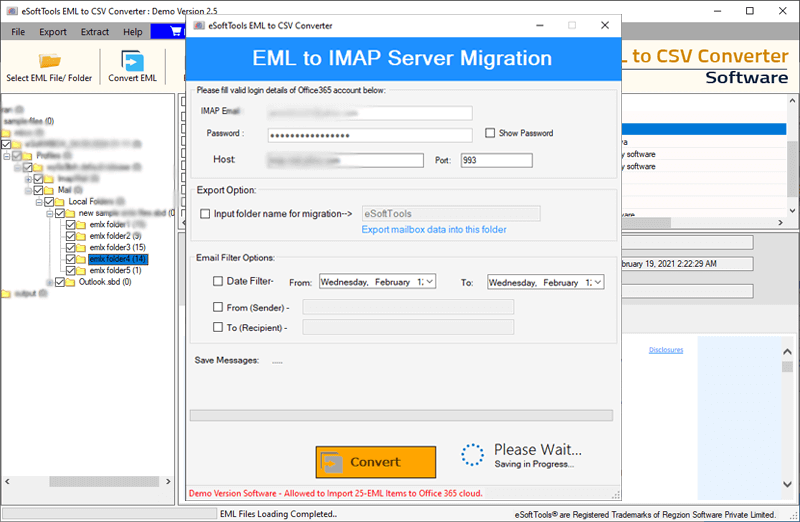
Steps to Import EML to IMAP Mail Server
Click on the button Import in IMAP Account.
Add IMAP account login details email address, password, host name, and Port.

Choose and implement other options
- Filter Email: - Select filtering options - Date, TO (recipient's email address), or From (sender's email address).
- Input Folder name for migration: - Insert a new folder with custom name in Gmail account to preserve imported EML emails.
Press the Convert button and start export EML emails to IMAP Mail Server account.
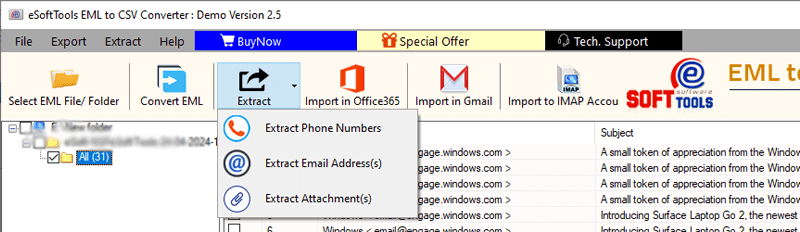
Extract Phone Number / Email Address or Attachment
Software enables extracting individual email elements from EML files. Choose from these as per your need: -
- Extract Phone Number.
- Extract Email Address(s).
- Extract Attachment(s).
Extract Phone Numbers from EML Emails
Choose needed EML folders, and click on Extract, then press on Extract Phone Number button.
Perform some needed Phone Number extraction settings: -
- Extract Phone Number in
- Saving Location
- Ignore Duplicate Phone Numbers
- Extract Phone Number from All Fields or Extract Phone Number from Specific Field
- Mail Filtering
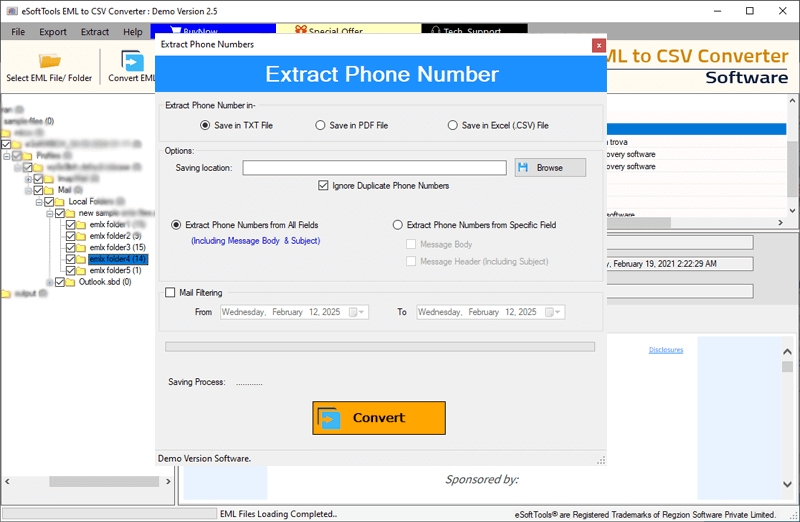
Available settings and options for Phone Number extraction: -
- Extract Phone Number in: - Save extracted phone number in file types TXT, PDF or Excel CSV.
- Saving Location: - Select a place from your local drive for saving resultant files (holding phone numbers).
- Ignore Duplicate Phone Numbers: - Select this option to prevent duplicate phone numbers from being copied.
Phone Number's Field Selection
- Extract Phone Number from All Fields: - Extract phone numbers from both message boody and subject
- Extract Phone Number from Specific Field: - Extract phone numbre from any one field of email - Message Body or Subject.
- Mail Filtering: - Esaily select the dates of emails from which you want to specifically extract phone numbers
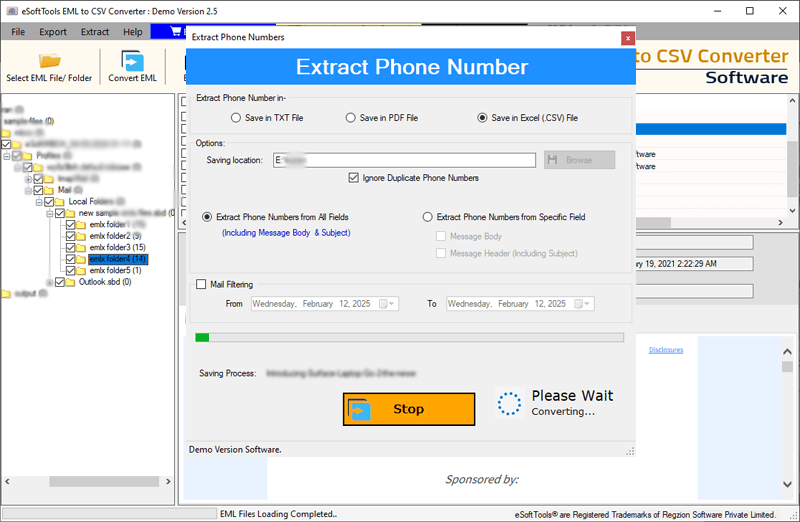
Click on Convert button and start extracting Phone Numbers from EML emails.
Extract Email Address from EML Emails
Choose EML Folders and click on Extract >> Extract Email Address button.
Select and use options: -
- Saving Location
- Saving Options
- Email Filter Criteria
- Mail Filtering
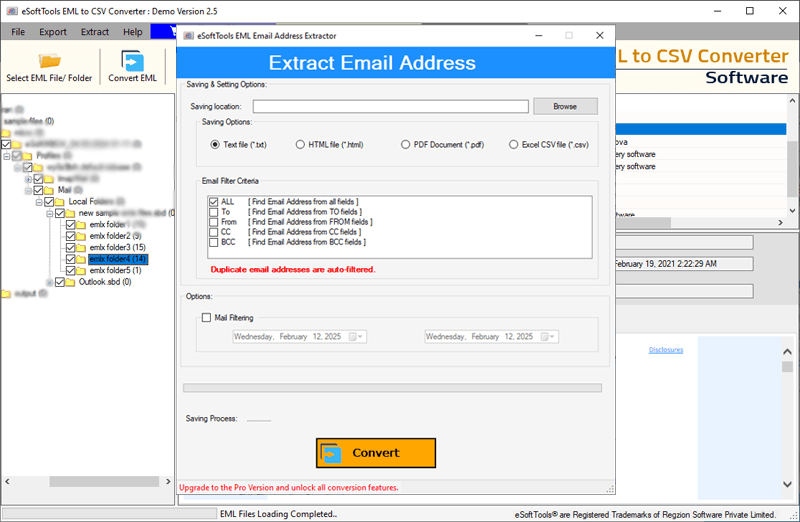
Apply other required settings: -
- Saving Location: - Choose the place for storing resultant files.
- Saving Options: - Select the file for saving email address- Text file (*.txt), HTML file (*.html), PDF Document (*.pdf), or Excel CSV file (*.csv).
- Email Filter Criteria: - Choose feilds from which you want to extract email addresses - All, TO, From, CC, BCC
- Mail Filtering: - Choose date range for selection of specific emails from which you want to extract email address.
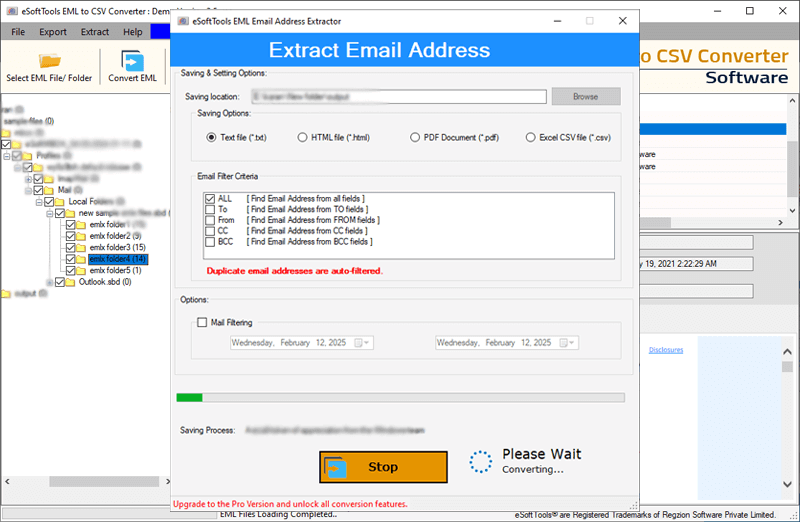
Click on Convert and start extracting email address from EML files.
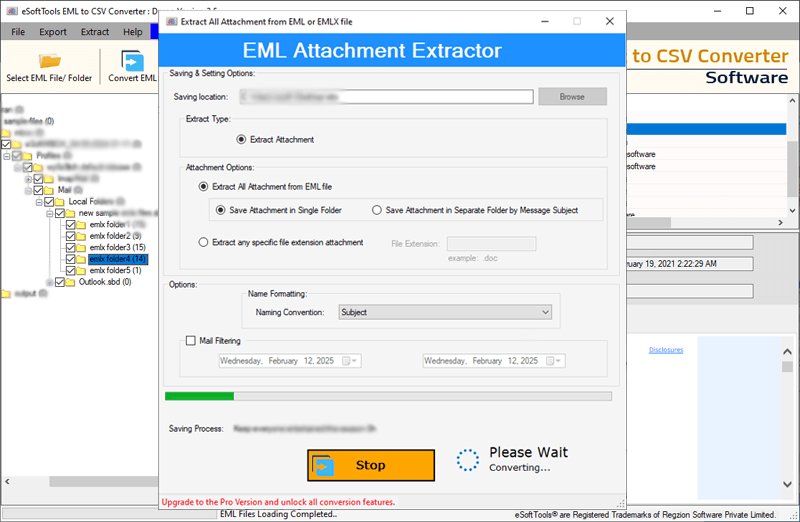
Steps to Extract Email Attachments from EML files
Click on Extract >> Extract Attachment(s) button from menubar.
- Saving Location
- Attachment Extraction options
- Naming Convention
- Mail Filtering
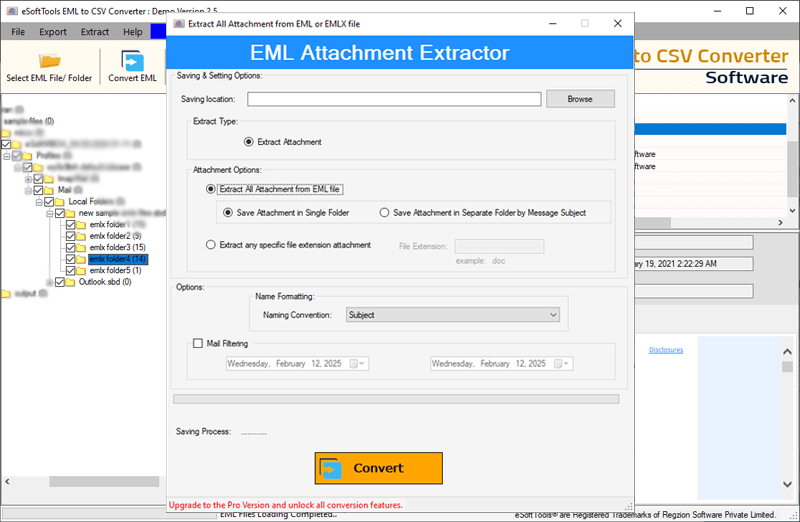
Apply attachment extraction settings: -
- Saving Location: - select a location to store extracted attachments.
Attachment Extraction options
- Extract all attachment from EML file: - Download attachments of all types chosen EML emails.
- Extract Any Specific File Extension: - Add an extension of which you want to extract attached files from EML emails.
- Mail Filtering: - Choose dates of emails from those you want to perform attachment extraction task.
Click on Convert button and start EML Email Attachment Extraction.