How to Extract Email Addresses from MBOX File?
MBOX Email Address Extractor software by eSoftTools to extract email address, attachments & phone numbers.
Introducing eSoftTools MBOX Email Address Extractor Software , an easy-to-use tool to safely collect email addresses, phone numbers and attachments from emails of MBOX file. Supports MBOX, MSF, MBX, MBS and other MBOX formats. Feature available to extract from single and multiple MBOX files. Also, provides output options in TXT, CSV, PDF or HTML to preserve email addresses..
Download, Install and launch eSoftTools MBOX Email Address Extractor Software, on a computer having Windows O/S.
After the launch of the software, firstly click on "Add File/Folder" button.

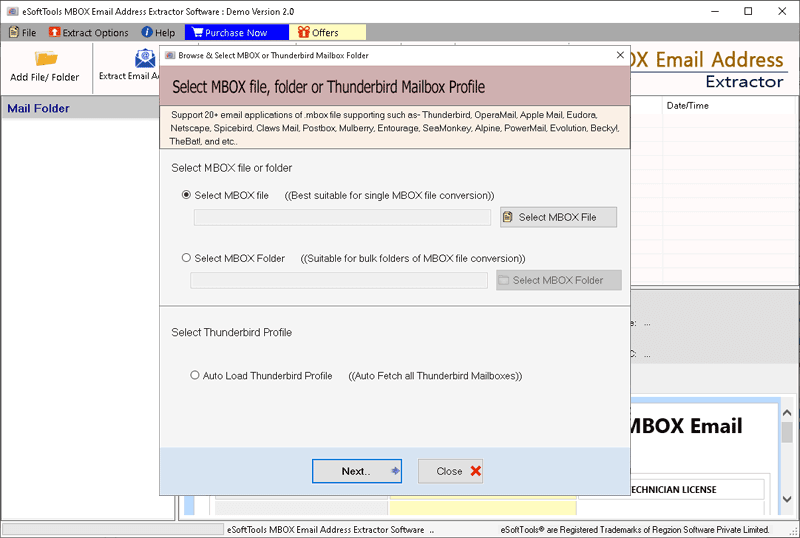
- Choose the method of adding MBOX file for extraction: -
- Select MBOX File- Choose this option, click on Select MBOX File button, and add single MBOX file.
- Select MBOX Folder- Choose this optin, press Select MBOX Folder button, and add a folder containing multiple MBOX files.
- Auto-Load Thunderbird profile- Click on the radio button Auto Load Thunderbird Profile to load mail folders from Thunderbird profile in a single click.
After adding MBOX file/folders, hit on Next and load emails from inserted MBOX files.
Load mail folders from imported MBOX files, and get preview their inner available emails.
Read emails and choose only the needed folders for export process.

Choose the task you want to perform by selecting an option from the top menu bar: -
- Extract Email Address(s): - To extract email address from MBOX emails.
- Extract Attachment(s): - For email attachment extraction from MBOX emails.
- Extract Phone Number(s): - collect phone numbers from emails of MBOX files.

Steps to Extract Email Address from MBOX
Make MBOX folders selection, pres Extract Email Address(s) button from menubar.
Select, and apply other settings: -
- Saving Location
- Saving Options
- Email Filter Criteria
- Mail Filtering
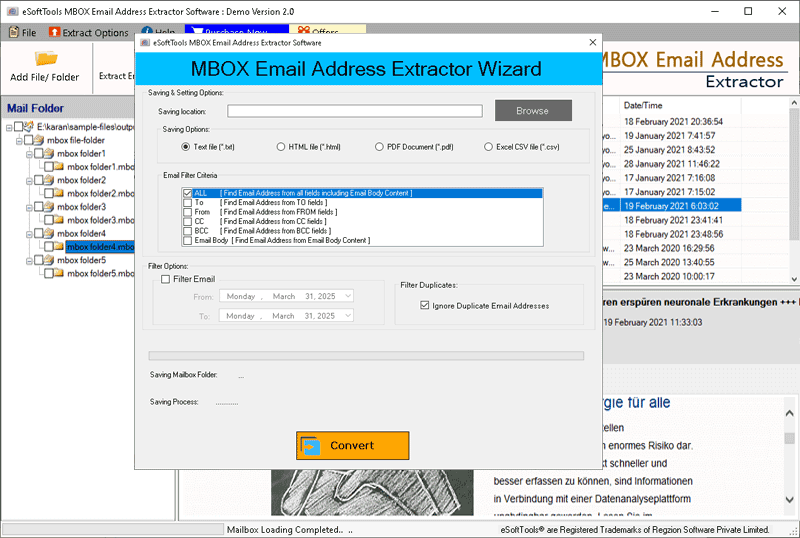
Neccessory settings
- Saving Location: - select a place from your drive to save the files containing email addresses.
- Saving Options: - Choose the file type for saving email addresses- Text file (*.txt), HTML file (*.html), PDF Document (*.pdf), or Excel CSV file (*.csv).
- Email Filter Criteria: - Select the fields of email for extracting email addresses - TO, From, CC, BCC, Email Body or All.
- Mail Filtering: - Select a date range to extract email addresses from a specified period.
Hit the Convert button and begin the process to extract email address from MBOX file's emails.

Steps to Extract Attachments from MBOX
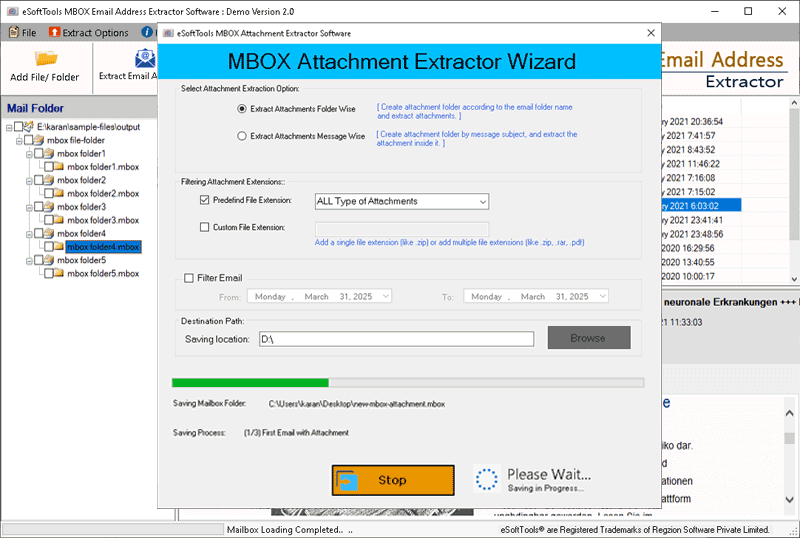
Press Extract Attachment(s) button and apply others selections: -
- Saving Location
- Attachment Extraction options
- Naming Convention
- Mail Filtering
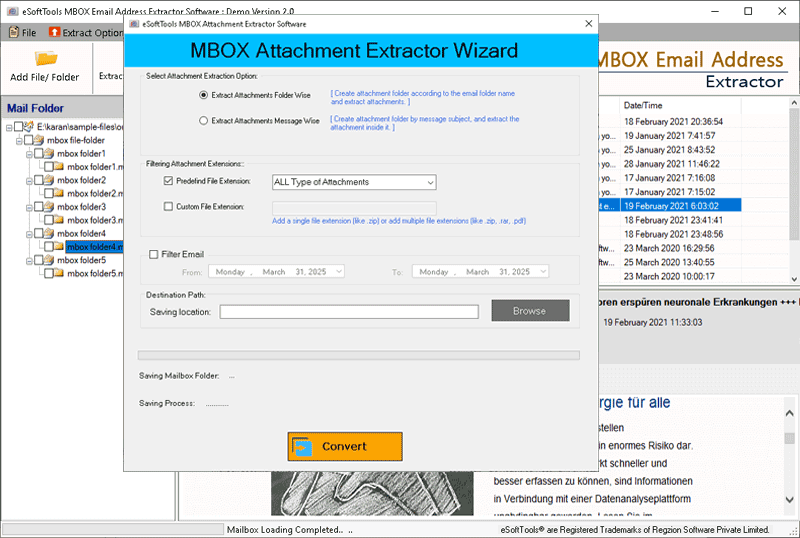
Attachment Extraction Settings: -
Attachment Extraction options: - Select a method of saving extracted attachments.
- Extract Attachment Folder-Wise: - Create a folder based on the email folder name and save the attachments inside.
- Extract Any Specific File Extension: - Create a folder using the message subject and save the attachments inside.
Filter Attachment Extensions: - Specify the extension of the attachment to target a specific type for extraction.
- Predefined File Extension: - Choose an attachment extraction from a predefined list of extensions.
- Custom File Extension: - Manually input an extension to extract only those attachments.
- Saving Location: - Choose the location where you want to save the extracted filesin your hard drive.
- Mail Filtering: - Specify the date range to filter emails for extraction.
Lastly, click oon Convert button to begin the MBOX Email Attachment Extraction.
Steps to Extract Phone Numbers from MBOX Emails
Choose MBOX folders, and hit Extract Phone Number(s) button.
Configuration for phone number extraction: -
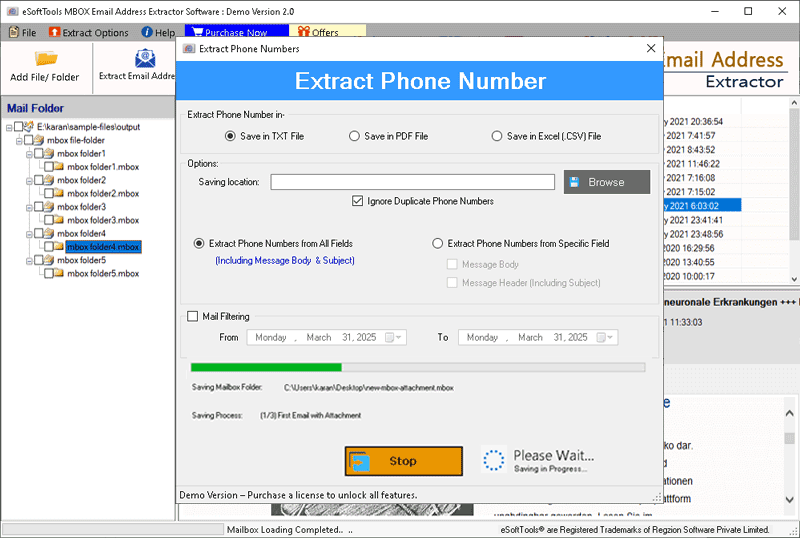
- Extract Phone Number in
- Saving Location
- Ignore Duplicate Phone Numbers
- Extract Phone Number from All Fields or Extract Phone Number from Specific Field
- Mail Filtering

Available settings and options for Phone Number extraction: -
- Extract Phone Number in: - Choose the file format (TXT, PDF or Excel CSV) to save the extracted phone numbers.
- Saving Location: - Select the destination path from your local drive where you want to save the resultant file with the phone numbers.
- Ignore Duplicate Phone Numbers: - Enable this option to avoid saving duplicate phone numbers.
Phone Number's Field Selection
- Extract Phone Number from All Fields: - Extract phone numbers from both the message body and subject
- Extract Phone Number from Specific Field: - Extract phone numbers from a specific field - (either Message Body or Subject).
- Mail Filtering: - Easily select the date range of emails from which you want to extract phone numbers.
Press, Convert button and start extracting Phone Numbers from MBOX emails.