How to Extract IMAP Email's Attachments & Email Addresses?
With IMAP Attachment Extraction of eSoftTools, Extract Email addresses and Attachments from IMAP account's emails.
Instantly extract and download attachments as well as email addresses from emails of an IMAP account. Complete this step with simple steps with the help of "eSoftTools IMAP Attachments Extractor Software". Extract attachments of all types from multiple IMAP account mail folders at once. Get multiple smart filters and options to perform the best and smartest attachment and email address extraction work.
Choose your mail app from available options.

- Email Address: - Enter your IMAP account Email address.
- Password:- Input password or IMAP account
- Port: - Enter "993" in this field
- Host Name: - Provide mail server address like- mail."your domain".com

Get the preview of mail folders and choose required folder from available list.

Select neeeded mail folders and follow the further steps shown below to extract attachments &email address:-
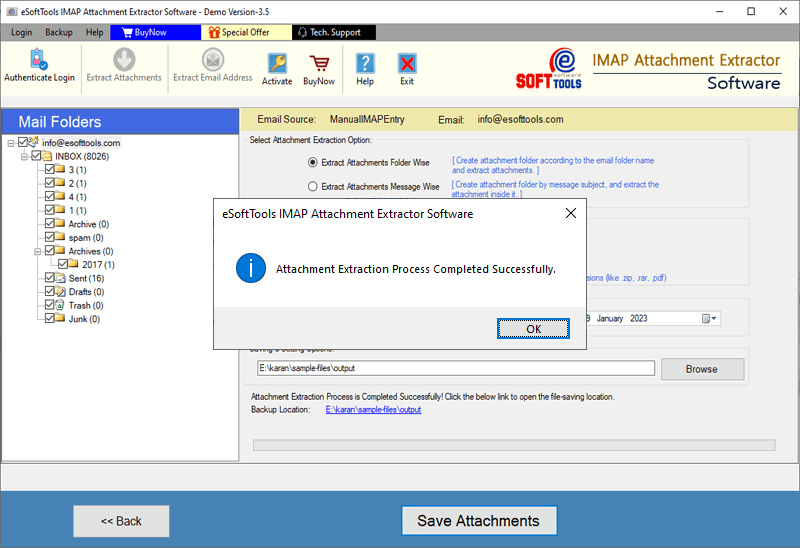
- Extract Attachments Folder-Wise:- Download attachments from items of all selected IMAP folders and preserve them folder-wise.
- Extract Attachments Message-Wise:- Create separate folder for saving attachments of each item to individual folders.
Select Attachment Extraction option
- Predefined File Extension:- From the list of different predefined file types choose your desired file type & extract attachment of only selected file type.
- Custom File Extension:- Manually enter file extensions of attachments that you want to extract from IMAP account data items.
Filtering Attachment Extensions
- Mail Filtering:- Filter email by choosing a "From" and "To" date for extracting attachments from items of only specified dates.
- Saving Location:- Choose a location from your hard drive to save the extracted IMAP attachments.


- Choose Export option: - Select a file type for saving extracted email addresses, from the available file types- TXT, HTML, and CSV
- Select Email Filter Criteria:- Select an email address field from the options: - TO, BCC, CC, Subject, and From
- Mail-filter: - Apply the Mail filtering settings (for email addresses extraction from emails of chosen dates).
- Saving Location: - Press the "Browse" button and choose a location from your PC to save the resultant file containing email addresses.

After all these selections, press the Save button.
- Create Single File: - Get a single file with all extracted email addresses.
- Create Separate File According to mail folder name: - Preserve email addresses of emails from each folder in separate files.

