How to Delete emails from Web/Cloud mail apps?
Remove/Delete emails in bulk from different cloud mail accounts with easy steps
Download eSoftTools Email Eraser Software to remove emails from all cloud mail apps. Delete all unnecessary emails from Gmail, Yahoo, Outlook.com, Office365, Zoho Mail, and other IMAP based mail account. With this single software, erase all unwanted emails permanently from IMAP mail accounts, by using different modes of emails erasing.
Software Navigation
Step-1) Download and launch eSoftTools Email Eraser Software in your windows O/S based computer.

Step-2) Select your mail app from the available list of cloud/webmail apps.
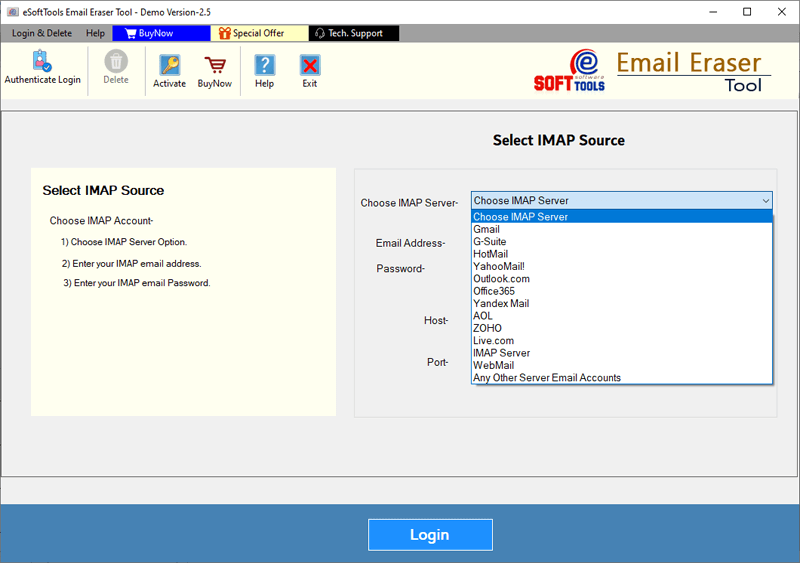
Step-3) After Mail app selection, and enter your account details: -
- Email Address:- Enter Email Address of your IMAP account.
- Password :- Add Password of IMAP account.
- Port:- In this field enter "993".
- Host Name:- Add Host name i.e. "mail.yourdomain.com".

Step-3) Click on "Login" and load all mail folders of mail account.
From this mail folders list make selection mail folders from which you want to delete emails.

Make selection of mail folders and follow these below mentioned steps for deleting emails: -
Apply these steps to remove emails from all IMAP based cloud/web mail apps: -
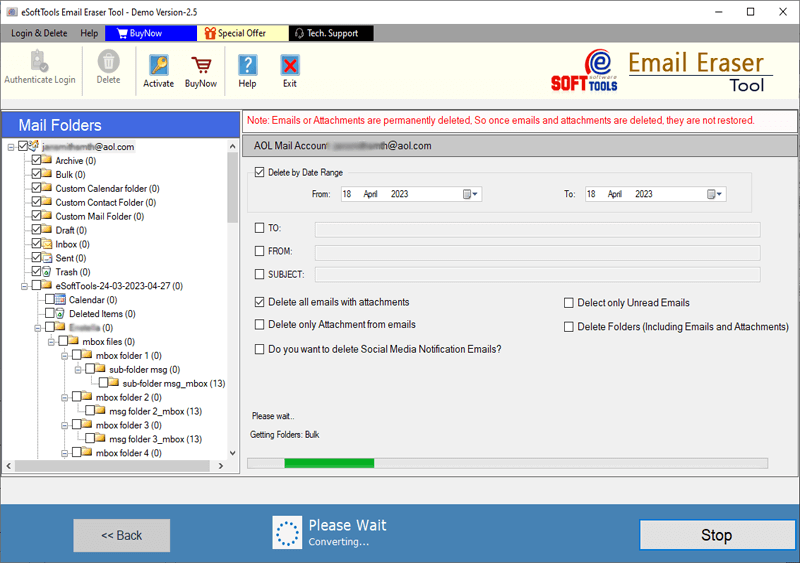
Step-4) Choose a mode of email deletion from the available options- To, Subject, From, Delete By Date, Delete unread Emails, etc.

- Delete By Date Range: - Remove emails of specific dates by selecting a start and end date.
- To:- Input the email's “To” field email address and delete emails of only specified email address.
- From:- Enter email's “From” field email address and remove emails that you recieved from that specified email address.
- Subject:- input subject of emails and delete all emails that has that specific subject.
- Delete all Emails with attachments:- From choosen folders remove all their available emails with their attachments.
- Delete only attachments from emails:- Delete only attachments of emails from the chosen emails folders.
- Delete only unread emails:- Delete all unread emails from the selected folders.
- Delete Folder (including emails and attachments): - Remove selected folders completely with their inner items.
- Do you want to delete social media notification emails: - Select this option to remove social media notification emails from mail account.
Available deletion modes for deleting unnecessary emails: -
Step-5) After applying all required settings, click on "Delete" and remove all unnecessary emails from your email account.
Apply the following steps to migrate Yandex Mail to Web/Cloud mail apps: -
Step-4) After folders selection process, hit on the "Do you want to delete social media notification emails" option.
Step-4) From next opened screen, choose the social media app for deleting their notification emails.
Input the email address that has sent you social media notification emails and click on "OK".

Step-4) Lastly, click on "Delete" and start the deleting all emails of specified email address from which you got notifictaion emails.