How to Compress and Compact Outlook PST/NST or OST files?
Remove/Compress Outlook attachments from emails, contacts, calendar, etc of PST/OST or NST files.
The best solution to reduce Outlook data file size called "eSoftTools PST Compact & Compress Software". Make oversized PST, NST or OST files smaller in size size. Quickly Compress and remove all or specific attachments from Outlook emails, contacts, calendar, tasks, and other items with ease
Step-1) Download & Launch eSoftTools PST Compact & Compress Software on a windows computer.
Presss the Select PST button from first screen.
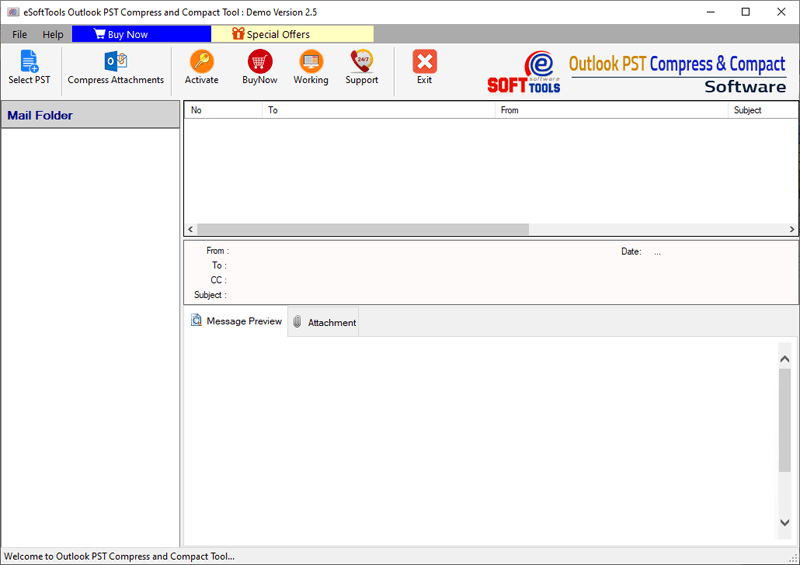
Step-2) From next screen, choose a file selection mode from the options:-
- Single File Conversion:- Compact/Compact a single PST at once.
- Bulk File Conversion:- Compress/Compact multiple PST files in a single process.

Step-3) Select required option and Input PST/OST and NST files in the software.
Search & Select Outlook files
1) Press "Select PST/OST File" or "Search PST/OST File" button and select Outlook from from your drive.
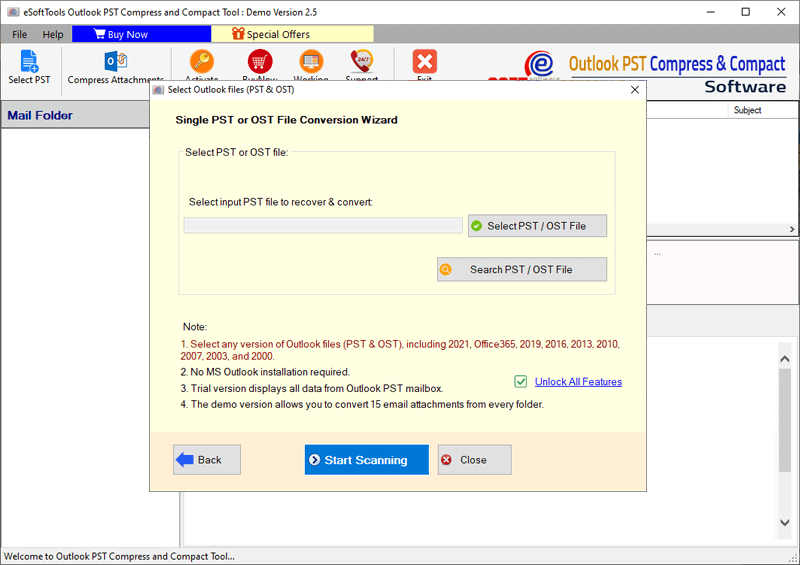
2) After file import process, press the "Start Scanning" button.
Add Outlook files in bulk
1) Press Add PST/OST file or Add PST/OST folder button and import multiple Outlook data files in the software.

2) Add all Outlook files and hit the "Start Scanning" button.
Step-4) Start PST file scanning process and extract all PST file's inner folders and data items.
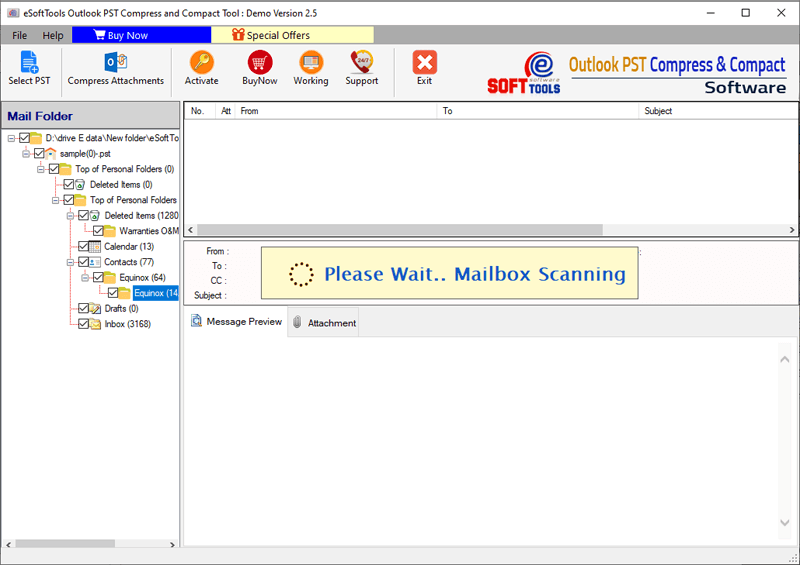
Step-5) Preview all Outlook item with attachments.
Select required Outlook folders and press the "Compress Attachments" button from menu.

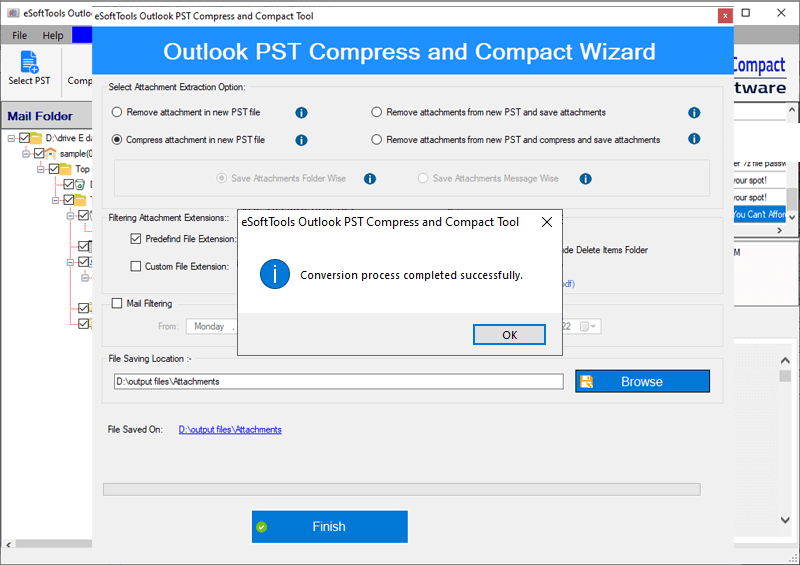
Step-6) A new window will appear on your screen with different options for removing and compressing attachments.
- Remove Attachments In New PST :-
Create New PST files without attachments
- Compress Atachments in New PST file :-
Compress Attachments from PST files in zip format
- Remove Attachments from New PST and Save Attachments:-
Create new PST without attachments and save all attachments to new folder
. - Remove Attachments from New PST, Compres & Save Attachments:-
et new PST without attachments and save all attachments with compressing them in zip files to separate folder
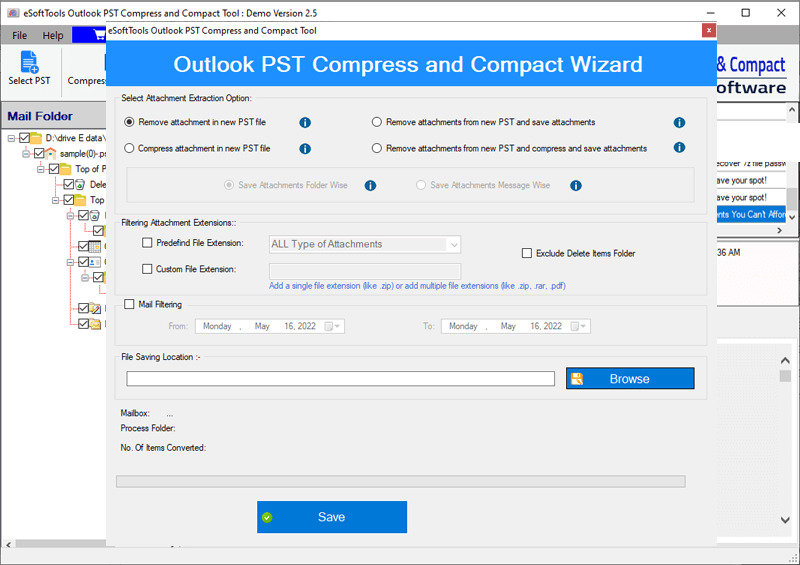
Step-7) Select other functions and other reqiored options of the software.
- Predefined File Extension:- Select a file type from a predefined list of multiple file extensions, remove and compress attachments of only specified file type.
- Custom File Extension:- Manually add single or several file extensions and remove/compress only selected attachments from Outlook data files.
Filtering Attachment Extensions
- Exclude Deleted Items Folders:- Skip removing or compressing attachments from deleted items folders of Outlook files.
- Mail Filtering:- Use this function to remove/compress attachments from emails of some specific date. Select a "From" and "To" date make selection of email dates.
- Saving Location:- Choose a destination path where you want to save your resultant compact PST and compressed PST files.
Step-8) After all selections, simply hit the "Save" button and start removing/compressing attachments from Outlook data files.

Step-9) The software will now compress and remove all your unessory attachments to reduce file size and provide a message like- "Conversion process completed successfully".